
Settings
The Settings area controls workspace-level configuration. In current vurvey-web-manager master, the visible Settings navigation contains two tabs:
- General settings
- AI Models
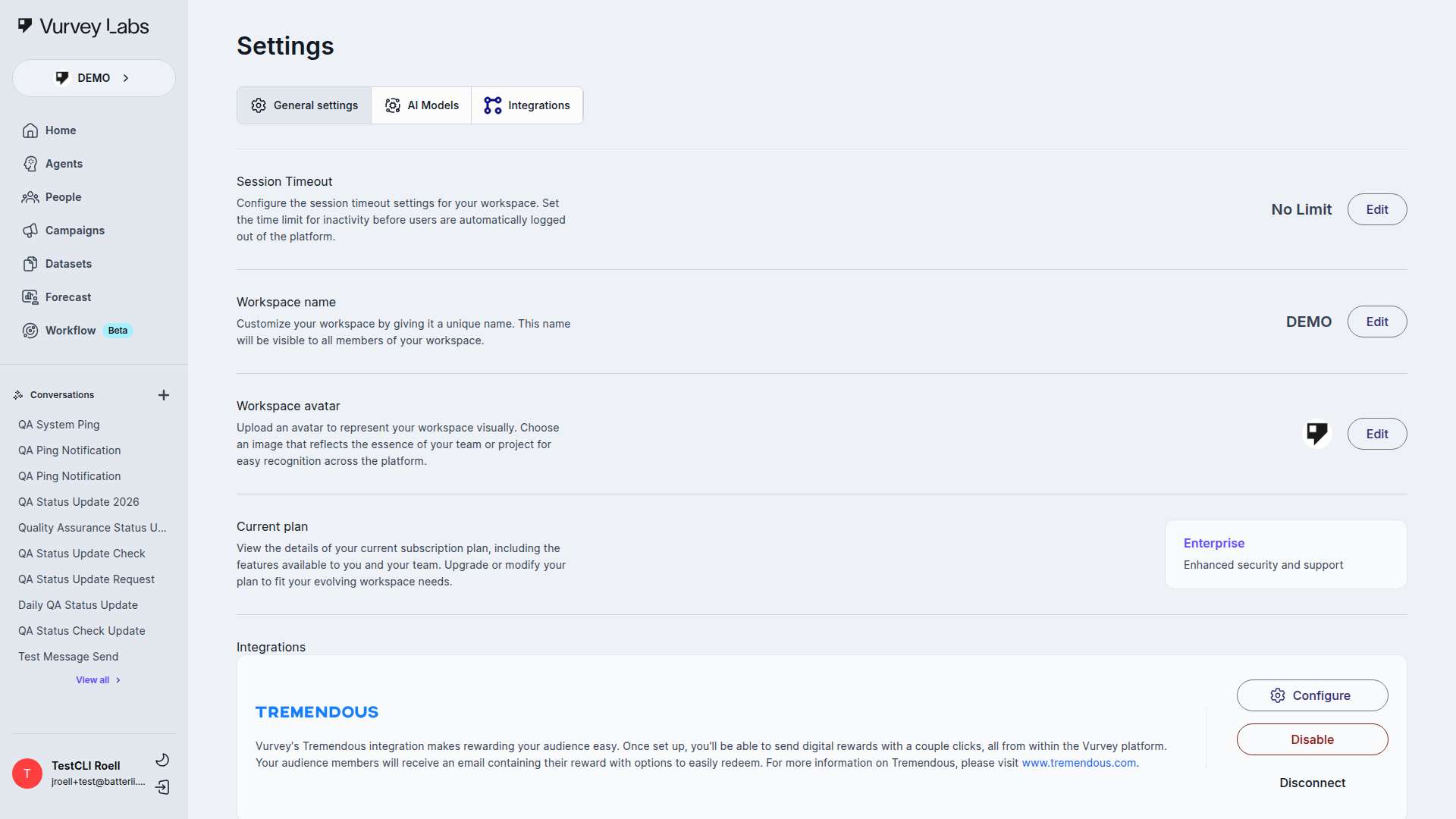
Current Navigation
| Tab | What it contains |
|---|---|
| General settings | Session timeout, workspace name, workspace avatar, and current plan |
| AI Models | Searchable AI model catalog for the workspace |
An API Management route still exists in the codebase, but it is not part of the visible Settings tab strip in the current UI.
General Settings
The General Settings page currently exposes these sections:
Session Timeout
Shows the current inactivity timeout for the workspace:
No Limit, or- a minute-based timeout such as
15 minutes
The value is edited through a modal, not inline. The current modal includes:
- a switch for enabling or disabling forced timeout
- a minute input when the timeout is enabled
- Save and Cancel
Workspace Name
Shows the workspace name and an Edit action. The current edit flow opens a small single-input modal.
Workspace Avatar
Shows the current avatar and an Edit action. The current edit flow uses the shared picture-upload modal with JPG/PNG guidance plus Save and Cancel actions.
Current Plan
Shows the current workspace plan using the plan card component.
Tremendous / Rewards Integration
This is the important current-state detail: the Tremendous integration block does not always appear.
In master, the General Settings page only renders the Tremendous card when the workspace already has reward settings. If the workspace has never been configured for rewards, this section is absent here.
For first-time reward setup, the more reliable path is the standalone Rewards page.
AI Models
The AI Models page is a searchable model browser. It is driven by workspace configuration and can legitimately show an empty state.
The page currently supports:
- Searching models
- Viewing models grouped by category
- Empty-state handling when no models are available
If no models are provisioned for the workspace, the UI can show:
No AI models available for this workspace.
Manage Users
Workspace member management is a separate page from the main Settings tab strip. It is still part of workspace administration, but it is not rendered as a Settings tab.
The members page supports:
- searching
- role filtering
- inviting users
- changing roles
- removing users
- transferring ownership
Current Manage Users Layout
The current page includes:
- header actions for Transfer Ownership and Add Users
- a searchable Search Members field
- a role filter dropdown with All roles, Administrator, Manager, Owner, and optional Guest
- an upgrade banner when the workspace is in trial or pending-upgrade states
- a per-row vertical menu with Edit and Remove
When you click Edit on a member row, the role switches into an inline editing state with Save and Cancel. The page also blocks self-service edge cases: you cannot perform those member-management actions on your own account.
Manage Users Dialogs
| Dialog | Current behavior |
|---|---|
| Invite Members | Tag-input email field, comma/Enter tip, role radios for Owner, Admin, Manager, and optional Guest, plus Add Member |
| Confirm deletion of user from workspace | Removal confirmation with an ownership-transfer selector when required |
| Transfer Workspace Ownership | User selector plus resource-type dropdown: All resource types, Campaigns, Datasets, Workflows, Ai-personas |
Roles
The current role set includes:
| Role | Notes |
|---|---|
| Owner | Highest level; ownership-specific actions are available here |
| Administrator | Broad workspace administration |
| Manager | Standard non-owner collaborator role |
| Guest | Only appears when guest mode is enabled for the workspace |
If guest mode is not enabled, Guest does not appear as a role option.
API Management
There is still an API Management page in the codebase, but in current master it is effectively disabled and hidden from the normal Settings navigation.
That means user-facing docs should not present it as a standard visible Settings tab today.
Practical Guidance
- Use General settings for workspace identity and session policy
- Use AI Models to understand which models the workspace exposes
- Use Manage Users for member administration, role changes, and ownership transfer
- Use Rewards if you need to configure or operate Tremendous-backed incentives