
Agents
Agents are AI-powered team members you create to represent consumer perspectives, provide specialized expertise, or generate visual content. Each agent has its own personality, knowledge base, and communication style — think of them as virtual focus group participants, research assistants, or creative partners that are available around the clock.
Why Use Agents?
Whether you're testing a new product concept with a simulated Gen Z beauty enthusiast, getting instant analysis of campaign responses from a research assistant, or generating mood boards for a creative brief, agents let you move faster without sacrificing the depth of insight your team needs.
Agents can:
- Simulate consumer perspectives — create agents that embody your target demographics and test messaging, packaging, or product concepts before going to market
- Accelerate research — build assistants that analyze survey responses, identify themes, and surface actionable insights in minutes instead of weeks
- Generate visual content — produce concept images, mood boards, and creative assets on demand
- Participate in workflows — add agents as automated steps in your research pipelines
The Agent Gallery
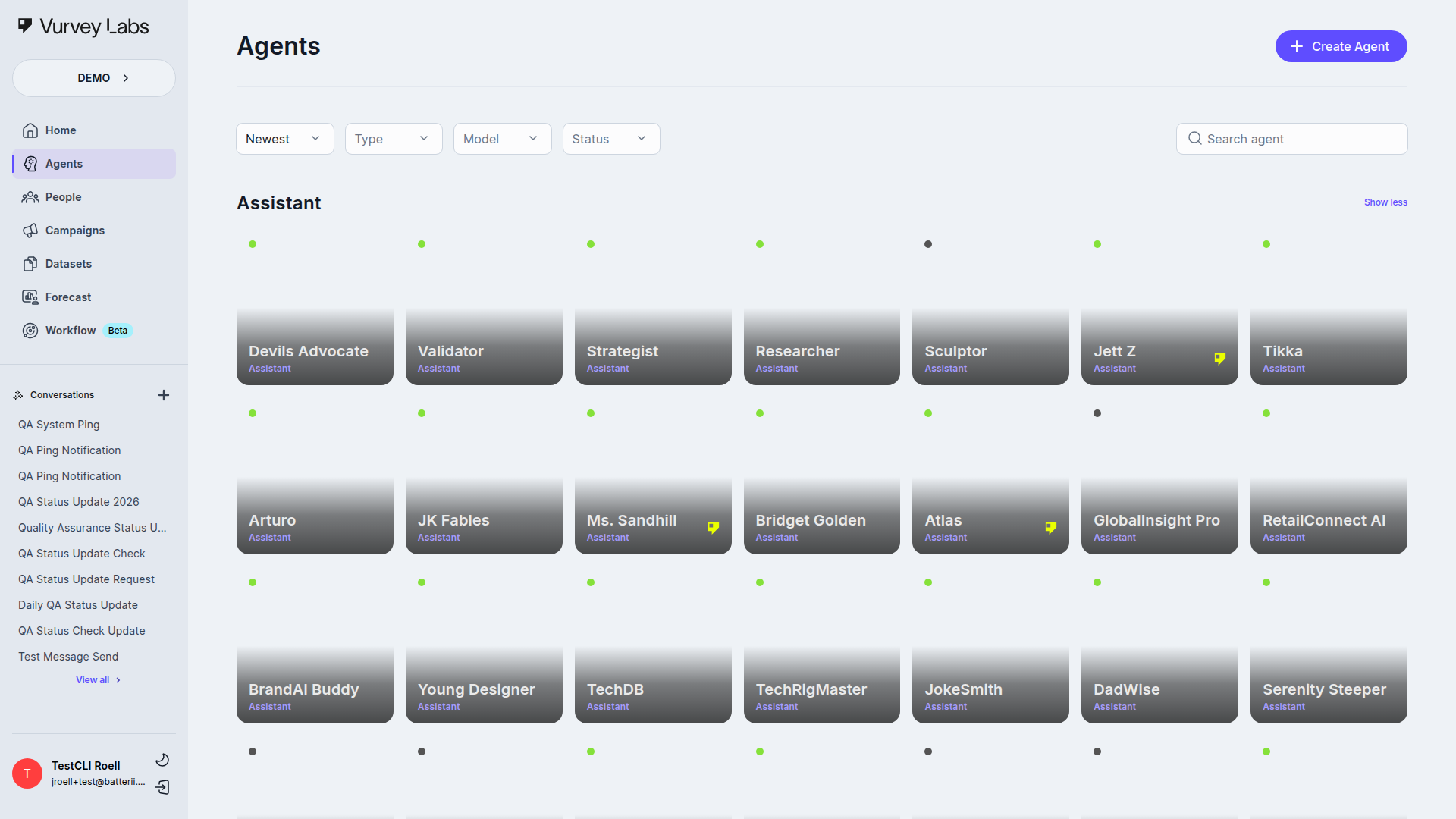
When you open Agents from the left navigation, you'll see the Agent Gallery — a visual grid of all the agents available in your workspace. Each agent appears as a card showing its avatar, name, type, and status.
Gallery Sections
Agents are organized into collapsible sections by Agent Type:
- Trending — A dynamic section showing popular Vurvey-created agents from the last 30 days. These are marked with the Vurvey Badge (a sparkle icon). This is not a persistent type but a filtered view of recent platform agents.
- Assistant — General-purpose research and analysis agents
- Consumer Persona — Simulated consumer perspectives and persona agents
- Product — Product-specific expertise and knowledge agents
- Visual Generator — Image generation and creative visual agents
The four agent types you can create are: Assistant, Consumer Persona, Product, and Visual Generator. When creating an agent, you select its type, which determines both its capabilities and how it appears in the gallery.
Agent Type Organization
The gallery organizes agents by their type (Assistant, Consumer Persona, Product, Visual Generator), not by functional category. Each type section is collapsible, making it easy to browse agents with similar capabilities.
Agent Cards
Each card shows:
- The agent's avatar image as the card background
- The agent's name in white text
- The agent's type as a purple label (e.g., "Consumer Persona")
- A Vurvey Badge (sparkle icon) if it's an official platform agent
- On hover: a status indicator (green dot for Published, gray dot for Draft), the agent's description, and a three-dot menu for quick actions
Searching and Filtering
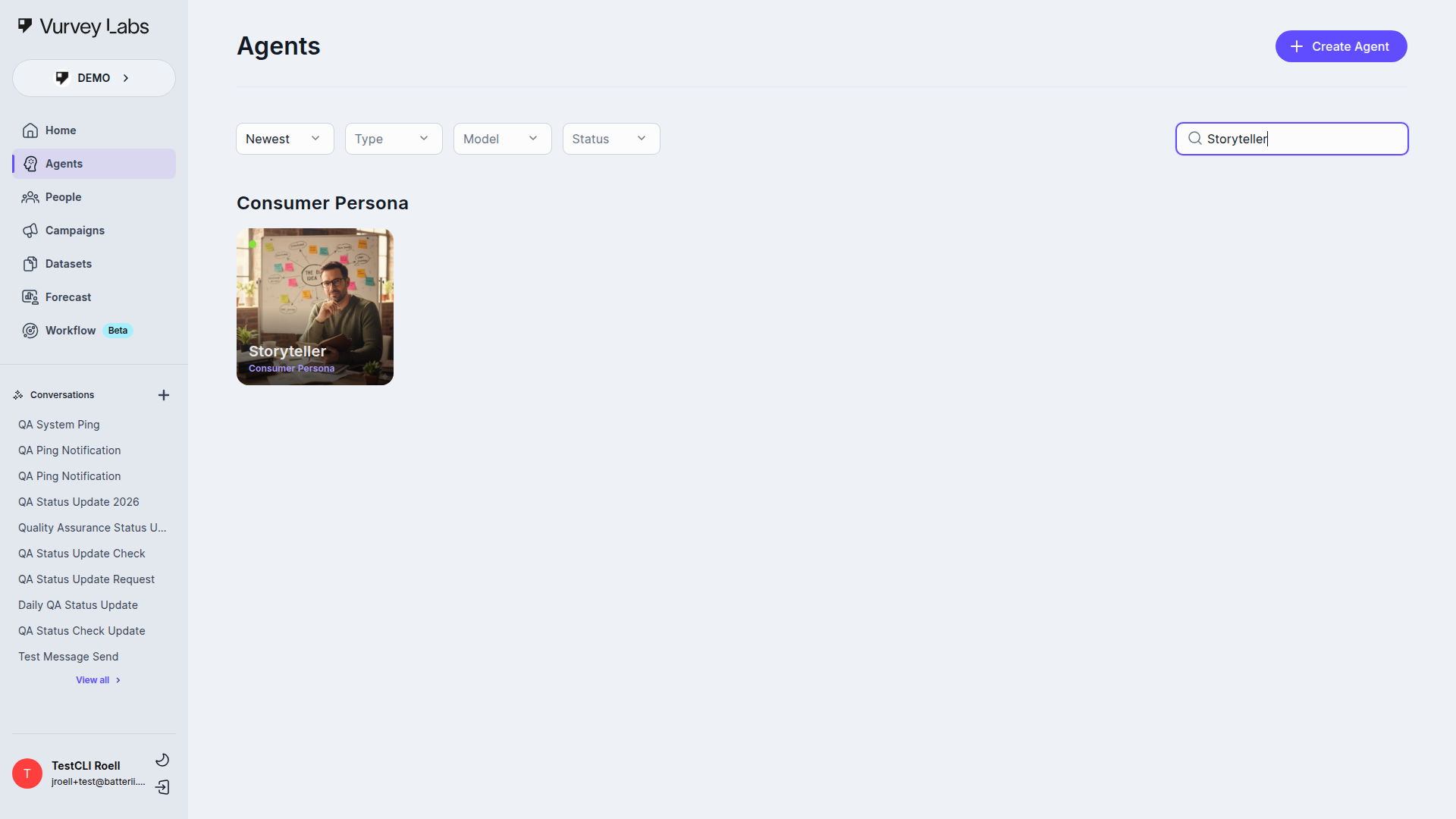
Use the filter bar at the top of the gallery to find specific agents:
- Sort — Order agents by Newest or Oldest
- Type — Filter by Assistant, Consumer Persona, Product, or Visual Generator
- Model — Filter by the AI model powering the agent (GPT, Gemini, Claude, Stable Diffusion, DALL-E, Imagen, and others)
- Status — Show only Active (Published) or Inactive (Draft) agents
- Search — Type a name to find a specific agent instantly
Agent Types: Choosing the Right One
Picking the right agent type helps organize your library and sets appropriate defaults in the builder.
Assistant
Best for general-purpose research tasks, data analysis, and team support. Use an Assistant when you need a flexible AI partner that can handle a range of topics.
Example use cases:
- Set up a research assistant agent that helps your team quickly analyze campaign responses and surface key themes
- Create an industry trends analyst that monitors your competitive landscape and delivers weekly briefings
- Build a survey design consultant that reviews your questionnaires and suggests improvements
Consumer Persona
Best for simulating how specific consumer segments would react to your products, messaging, or concepts. Use a Consumer Persona when you want to "hear from" a target demographic without scheduling a focus group.
Example use cases:
- Create a Gen Z beauty enthusiast agent to simulate how younger consumers would respond to your new product concepts
- Build a luxury shopper agent that embodies the preferences and behaviors of high-net-worth consumers
- Design a health-conscious parent agent to test how families with young children react to new packaging claims
Product
Best for product-specific expertise and knowledge. Use a Product agent when your team needs instant answers about features, positioning, or competitive comparisons.
Example use cases:
- Build a product expert agent for your new skincare line that helps your team understand ingredient benefits and positioning
- Create a competitive analysis agent that knows your product category inside and out
- Set up a product training agent that onboards new team members with consistent, accurate information
Visual Generator
Best for creating images, mood boards, and visual concepts. Use a Visual Generator when you need creative assets quickly.
Example use cases:
- Generate concept visualizations for a new product launch campaign
- Create mood boards that capture the aesthetic direction for a brand refresh
- Produce packaging concept images to share with stakeholders before investing in design
Choosing Between Types: Quick Reference
| If you need... | Use this type | Why |
|---|---|---|
| Analyze survey data and find themes | Assistant | Flexible, analytical, can process structured data |
| Simulate a 25-year-old sneaker collector's opinion | Consumer Persona | Persona facets create authentic consumer voice |
| Answer questions about your product catalog | Product | Optimized for product knowledge and comparisons |
| Generate packaging mockup images | Visual Generator | Image generation tools enabled by default |
| A research moderator who synthesizes inputs | Assistant | Can coordinate and summarize multi-agent discussions |
| Test how a skeptical buyer reacts to pricing | Consumer Persona | Behavioral facets like skepticism and price sensitivity |
Viewing Agent Details
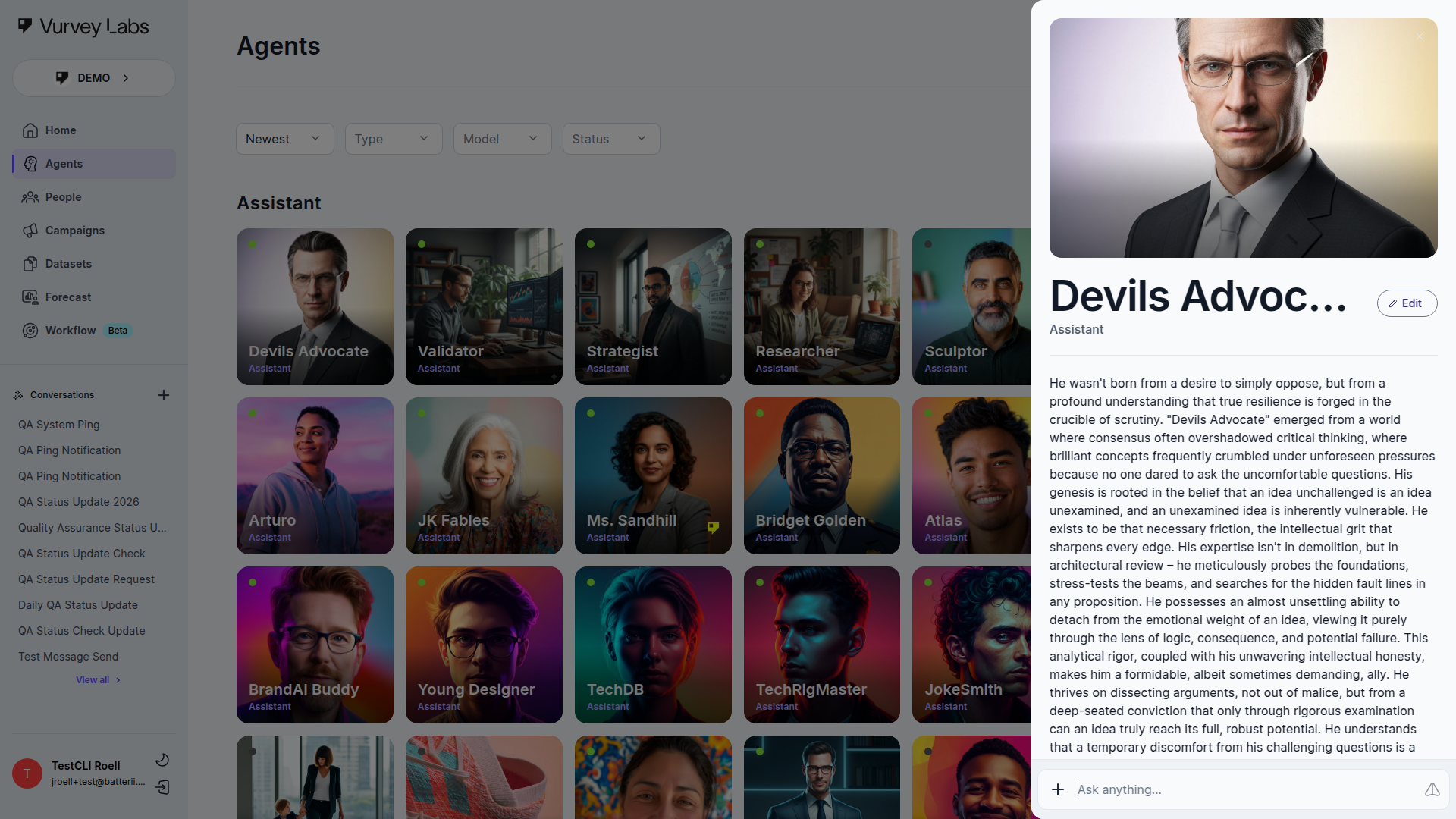
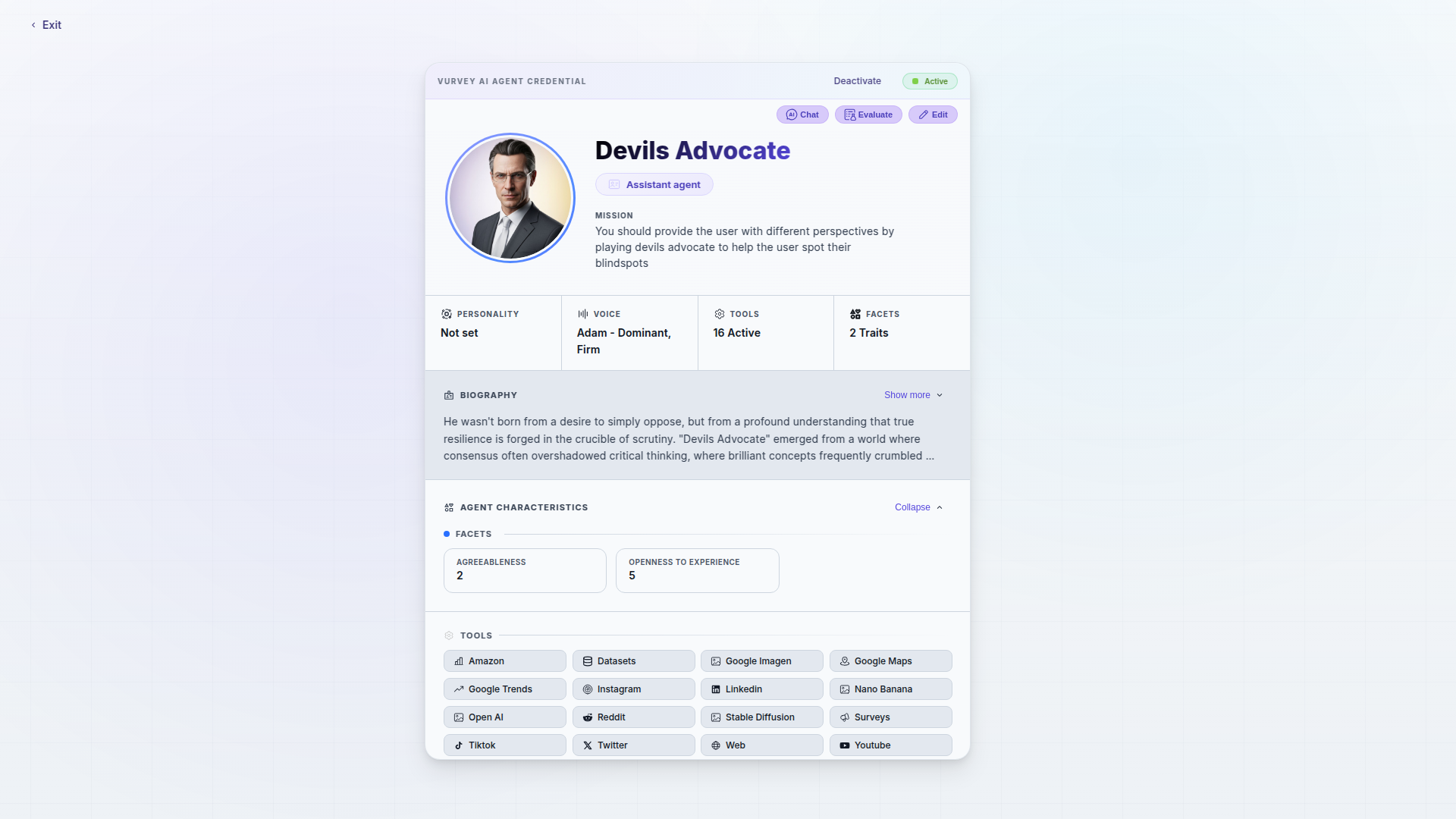
Click any agent card to open the details drawer, which slides in from the right side of the screen.
The drawer shows:
- The agent's avatar at full size
- Name and type
- An Edit button (if you have permission to modify the agent)
- The agent's full description with its biography and capabilities
- A list of related conversations — past chats involving this agent
At the bottom of the drawer, you'll find a live chat interface where you can test the agent immediately. Type a question and see how the agent responds in real time.
Click Edit in the drawer to open the full credential/edit view for that agent.
Test Before You Share
Before sharing an agent with your team, test it with a few representative questions:
- Does it stay in character and maintain its persona?
- Does it reference the datasets you connected?
- Does it follow the rules you set?
- How does it handle unexpected or off-topic questions?
Agent Card Actions
Click the three-dot menu on any agent card to access quick actions:
- Start Conversation — Open a new chat with this agent
- Share — Open the sharing dialog when sharing is available for your role
- Edit Agent — Open the agent builder to make changes
- View Agent — Open a read-only view (when you don't have Edit permission)
- Delete Agent — Permanently remove the agent when delete access is available
Creating an Agent
Click + Create Agent in the top-right corner of the gallery to start the agent creation flow.
Create Flow Depends on Workspace Features
In current master, + Create Agent does not always open the same first screen:
- some workspaces open a generation-first modal
- others go directly into the builder
In both cases, the goal is the same: get you into the guided agent-builder flow and then let you refine the result there.
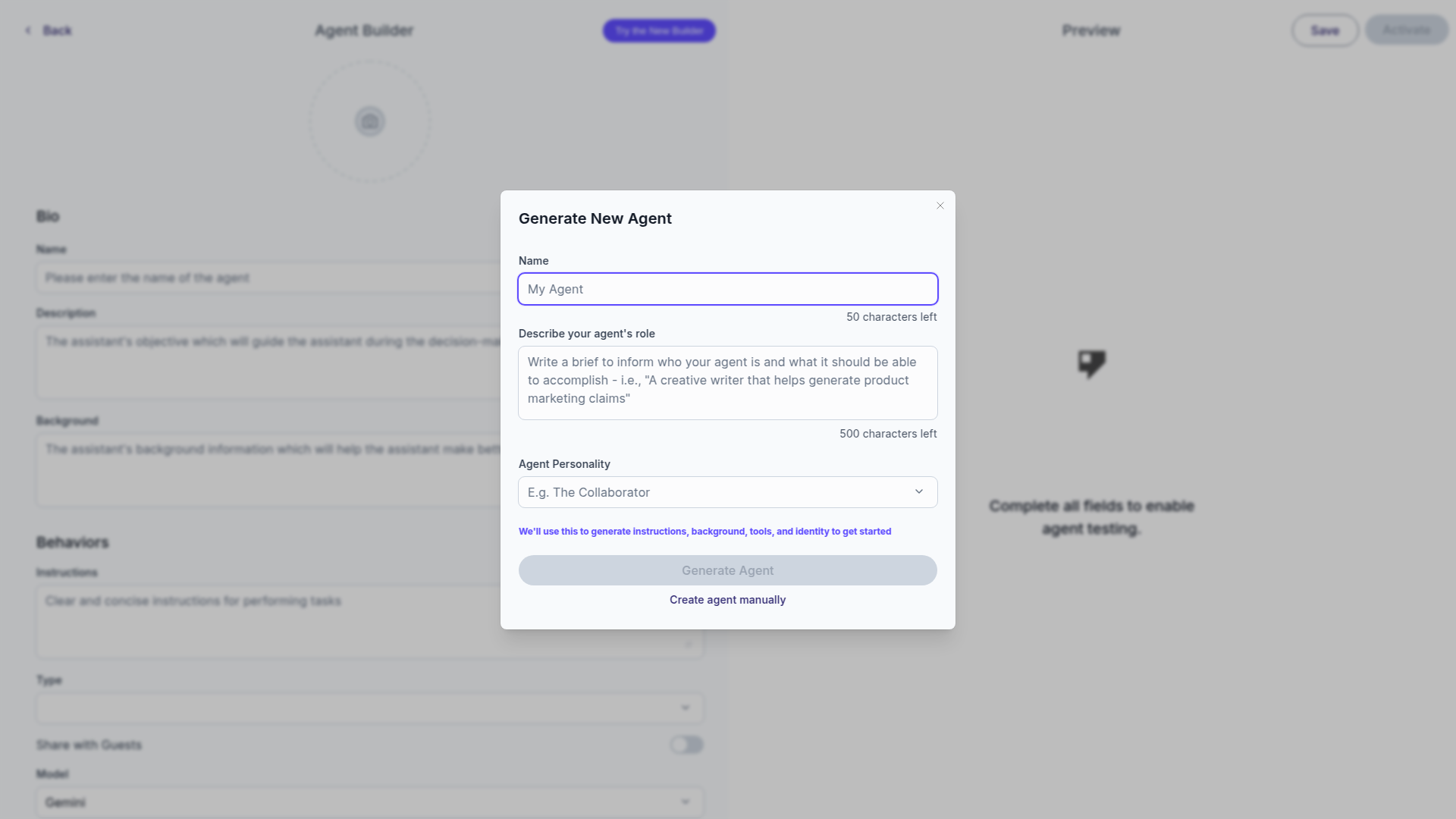
When the generation-first flow is enabled, the opening modal asks for:
| Field | What it does |
|---|---|
| Agent Name | The initial display name for the new agent |
| Describe your agent's role | The job you want the generated agent to perform |
| Agent Type | The starting agent category |
After you click Generate, the same modal switches into a progress state and cycles through status messages until the builder opens.
Builder Interface Variations
The agent builder interface varies depending on your workspace configuration and feature settings. You may see:
- A simplified single-page form with core fields like Bio, Behaviors, and Model settings
- A step-by-step guided builder with a visual progress bar and six steps
- A classic builder with all configuration options on one scrollable page
If you land in the simplified or classic view and want the guided experience, use Try the New Builder or Use Guided Builder in the top navigation bar when that option is available.
Classic Builder Available
If you prefer the original builder experience, click Use Classic Builder in the top navigation bar at any time. Builder availability depends on your workspace feature flags and permissions.
Builder Navigation
The builder interface depends on which version is active in your workspace:
Simplified Builder — A single-page form with essential fields organized into sections:
- Bio — Name, Description, and Background for the agent
- Behaviors — Instructions, Type, Model selection, and Voice settings
- Use the Preview panel on the right to test your agent as you build
- Click Save to preserve your work or Activate when ready to publish
Guided Builder — A step-by-step wizard with a visual progress bar showing all six steps. Each step displays one of these states:
- Locked — You need to complete earlier steps first
- Available — Ready for you to work on
- Active — The step you're currently viewing (highlighted)
- Complete — A green checkmark means this step passed validation
- Needs attention — A red indicator means something needs to be fixed
You can click any unlocked step to jump directly to it, or use the navigation buttons to move forward and back.
Simplified Builder Users
If you're using the simplified single-page builder, you won't see the step-by-step structure described below. Instead, you'll configure your agent using the Bio and Behaviors sections directly. The core concepts (defining objectives, setting behaviors, choosing models) apply to all builder versions, but the interface layout differs.
Step 1: Objective (Guided Builder)
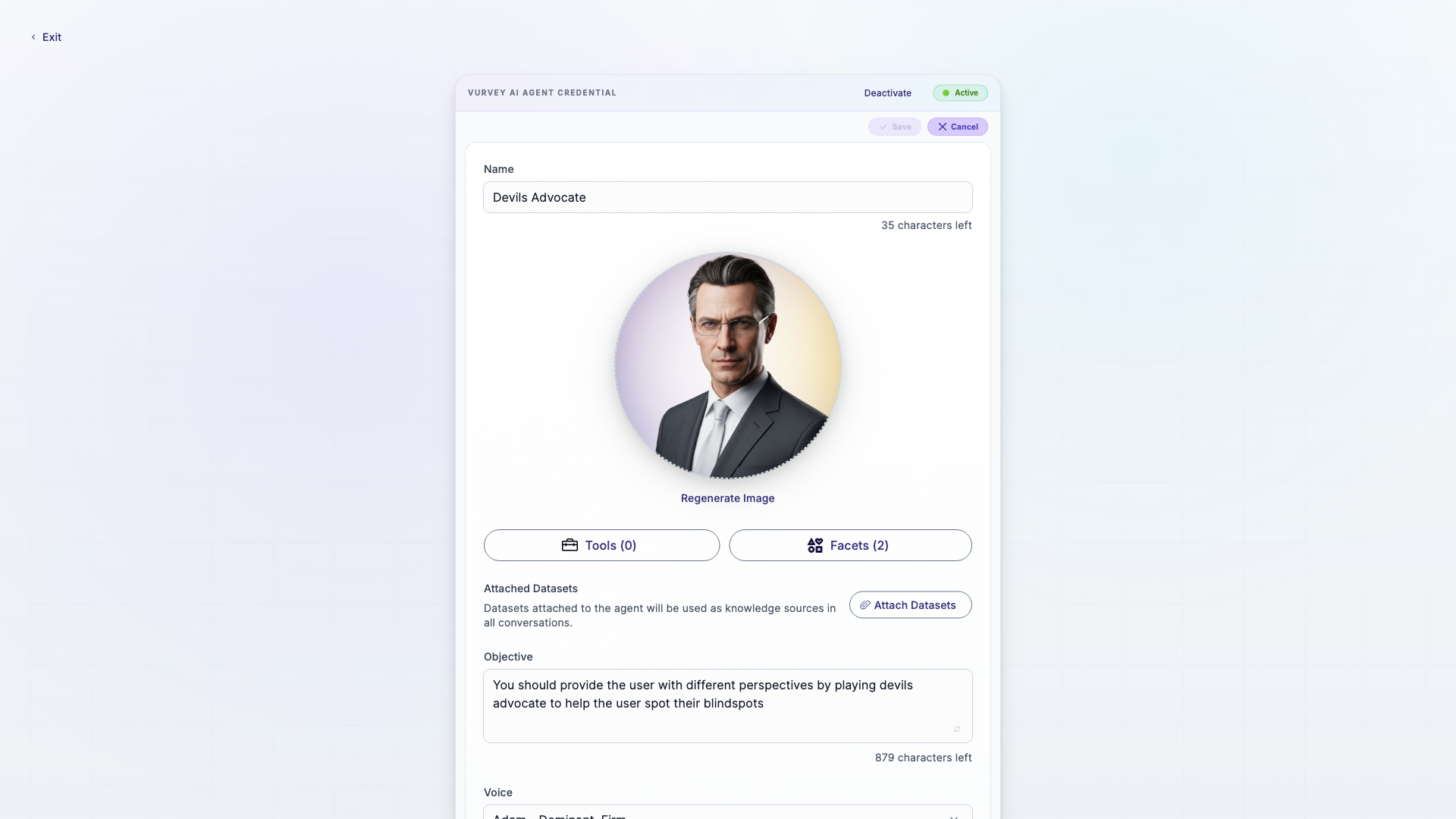
This is where you choose what kind of agent to build and define its mission.
What you'll do:
- Choose an agent type — Select from Assistant, Consumer Persona, Product, or Visual Generator
- Write a core mission — Describe what this agent should accomplish
Your core mission is the most important piece of guidance you'll give your agent. A well-written mission leads to much better results.
Writing a Strong Core Mission
Compare these two approaches:
Vague: "Help with research"
Specific: "Analyze consumer survey responses about sustainable packaging preferences, identify the top themes across age groups, and provide actionable recommendations for our product development team — including specific consumer quotes that support each finding."
The specific version gives your agent clear context, scope, and expected outputs.
More mission examples by agent type:
| Agent Type | Weak Mission | Strong Mission |
|---|---|---|
| Assistant | "Analyze data" | "Review open-ended survey responses from our Q3 brand perception study, categorize sentiment by product line, and flag responses that mention competitor brands — present findings in a table format with supporting quotes" |
| Consumer Persona | "Be a young shopper" | "Represent a 22-year-old college student in Austin, TX who shops primarily through TikTok and Instagram recommendations, is budget-conscious but willing to splurge on skincare, and values brand transparency above all else" |
| Product | "Know about our products" | "Serve as the expert on our 2026 Clean Beauty skincare line (12 SKUs), including ingredient lists, pricing, positioning vs. competitors like CeraVe and The Ordinary, and key clinical study results" |
| Visual Generator | "Make images" | "Generate photorealistic product lifestyle images showing our new beverage line in modern kitchen settings, targeting a warm and inviting aesthetic consistent with our brand palette of earth tones and soft lighting" |
Common Objective Mistakes
- Too broad: "Know everything about beauty" — the agent can't be an expert in everything
- Too narrow: "Answer questions about SKU #4421 pricing" — this is better as a dataset entry, not an entire agent mission
- Contradictory: "Be both highly creative and strictly factual" — pick a primary orientation and add the secondary as a guideline
Step 2: Facets (Guided Builder)
Facets define your agent's characteristics — the traits, demographics, and background that shape how it thinks and communicates. The page header shows Facet Values as you work through this step.
What you'll configure:
- Demographics — Age, gender, location, income level
- Lifestyle — Family status, hobbies, values, priorities
- Professional background — Industry, role, experience level
- Communication style — Tone, formality, level of detail
- Behavioral traits — Decision-making style, risk tolerance, skepticism
You can select traits using checkboxes, dropdowns, sliders, or free-text fields depending on the facet category.
Example: Building a Millennial Parent Persona
Imagine you're testing a new line of organic baby food. You might configure facets like:
- Age range: 30–38
- Location: Suburban United States
- Income: $75,000–$125,000
- Life stage: Parent of children under 5
- Values: Health-conscious, sustainability-minded, value-driven
- Shopping style: Research-heavy, influenced by peer reviews, prefers online ordering
- Communication: Casual tone, wants practical information quickly, values authenticity
Example: Building a Luxury Beauty Consumer
Testing a premium skincare launch at the $150+ price point:
- Age range: 35–50
- Location: Major metro areas (NYC, LA, Miami, Chicago)
- Income: $150,000+
- Life stage: Established professional, may have family
- Values: Quality over quantity, brand heritage matters, willing to invest in self-care
- Shopping style: In-store experience preferred, values expert recommendations, reads Vogue and Allure
- Communication: Sophisticated but approachable, expects detailed product knowledge, references trends and ingredients by name
Mold Templates
You can optionally start from a pre-configured mold (template) that provides a starting point for common persona types. Select a mold at the beginning of this step, then customize the facets to match your specific needs.
Facet Configuration Best Practices
- Be specific with ranges — "25–30" is better than "young adult" for age
- Add tension — Real people have contradictions. A health-conscious parent might also love junk food on weekends. These nuances make personas more realistic.
- Match your real audience — Pull facet values from actual customer data or segmentation studies when possible
- Don't over-configure — Focus on the 5–8 facets most relevant to your research question. Setting every possible facet creates noise.
Step 3: Optional Settings (Guided Builder)
Step 3: Instructions
This step lets you fine-tune how your agent operates by adding knowledge, rules, and connecting datasets. Everything here is optional — you can skip it entirely or come back later.
What you can configure:
AI Model
Choose which AI model powers your agent:
- Gemini Flash (Recommended) — Fastest responses, optimized for most everyday tasks
- Gemini Pro — Advanced reasoning capabilities, can analyze images and video
- Claude Sonnet — Excellent at staying in character and following nuanced instructions
- GPT-4o — Strong general knowledge across a wide range of topics
- Other models — Additional models may be available depending on your workspace plan
Model Availability
Available models depend on your workspace plan and may change as new AI models are released. Check the Settings → AI Models page to see the complete list of models in your workspace.
Which Model Should You Pick?
Start with Gemini Flash for most agents — it's fast and handles the majority of tasks well. Switch to Claude Sonnet when personality consistency matters most (like consumer persona agents that need to stay in character). Use Gemini Pro when your agent needs to analyze visual content. Choose GPT-4o for broad general knowledge tasks.
Detailed Model Comparison:
| Feature | Gemini Flash | Gemini Pro | Claude Sonnet | GPT-4o |
|---|---|---|---|---|
| Speed | Fastest | Moderate | Moderate | Moderate |
| Persona consistency | Good | Good | Excellent | Good |
| Analytical depth | Good | Excellent | Excellent | Excellent |
| Visual understanding | Basic | Excellent | Good | Excellent |
| Instruction following | Good | Good | Excellent | Good |
| Creative writing | Good | Good | Excellent | Good |
| Best for | Quick Q&A, high-volume tasks | Image/video analysis, complex reasoning | Character agents, nuanced rules | General knowledge, broad topics |
When to Switch Models — Real Scenarios
Scenario 1: Your persona agent keeps breaking character → Switch to Claude Sonnet. Claude excels at maintaining consistent personas even under adversarial questioning.
Scenario 2: You need the agent to analyze product images → Switch to Gemini Pro. It has strong visual understanding and can describe images in detail.
Scenario 3: Responses are too slow for your workshop → Switch to Gemini Flash. When running a live session with 20+ questions, speed matters more than depth.
Scenario 4: The agent gives shallow competitive analysis → Switch to Gemini Pro or Claude Sonnet. Both offer deeper reasoning for analytical tasks.
Tools
Enable specific capabilities for your agent:
- Smart Prompt — Enhanced reasoning (recommended for all agents)
- Web Search — Let the agent access current information from the web
- Image Generation — Enable visual content creation (essential for Visual Generator agents)
- Code Execution — Run calculations and data analysis scripts
- Document Analysis — Process uploaded files and documents
Tool recommendations by agent type:
| Agent Type | Recommended Tools | Why |
|---|---|---|
| Assistant | Smart Prompt, Web Search, Document Analysis | Needs broad capabilities for research and analysis |
| Consumer Persona | Smart Prompt | Keep it focused on persona responses; too many tools break immersion |
| Product | Smart Prompt, Document Analysis | Needs to reference product docs; web search optional for competitor info |
| Visual Generator | Smart Prompt, Image Generation | Image Generation is essential; add Web Search for reference inspiration |
Tool Interactions to Watch
- Enabling Web Search on a Consumer Persona can cause the agent to cite web sources instead of answering "in character." Only enable it if you specifically want the persona to reference current events.
- Code Execution is powerful but can slow down responses. Only enable it when the agent genuinely needs to run calculations or data analysis.
- Document Analysis works best when combined with connected datasets — it helps the agent process documents you upload during conversations.
Datasets
Connect knowledge sources to give your agent specialized expertise. For example, upload your product catalog, past survey results, competitive analysis reports, or brand guidelines.
Best practices:
- Connect 1–3 focused datasets rather than many loosely related ones
- Use labels within datasets to help the agent find relevant content
- Keep datasets up to date — outdated information leads to outdated answers
Dataset connection strategy:
| Agent Purpose | Recommended Datasets | Labeling Tips |
|---|---|---|
| Product expert | Product catalog, spec sheets, competitive comparisons | Label by product line, SKU, or category |
| Brand persona | Brand guidelines, tone of voice docs, ad copy examples | Label by channel (social, email, print) |
| Research analyst | Past survey results, industry reports, internal studies | Label by study name, date, and methodology |
| Trend monitor | Industry articles, trend reports, social listening data | Label by topic, source, and time period |
Getting the Most from Datasets
- Quality over quantity — One well-organized dataset with clear labels outperforms five messy ones
- Match the language — If your dataset uses technical terms, the agent will too. Include a glossary if you want the agent to translate jargon into plain language.
- Update regularly — Set a calendar reminder to refresh datasets quarterly. Agents can only be as current as their data.
- Test with specific questions — After connecting a dataset, ask the agent questions that should require that data. If it doesn't reference the dataset, check that the dataset processed successfully.
Knowledge and Rules
- Knowledge — Quick facts and context you want the agent to know (free text)
- Rules — Constraints the agent must follow, like "Never recommend competitor products" or "Always cite your sources when referencing data"
Example rules for a consumer persona agent:
- Always respond as your persona — never break character
- Only discuss topics within your defined areas of interest
- If you don't know something, say so honestly
- Keep responses conversational and under 300 words unless asked for more detail
- Reference your personal experiences and preferences when answering
Knowledge vs. Rules — understanding the difference:
| Knowledge | Rules | |
|---|---|---|
| Purpose | Gives the agent information | Constrains the agent's behavior |
| Think of it as | "Here's what you should know" | "Here's what you must/must not do" |
| Format | Facts, context, background | Instructions, boundaries, requirements |
| Example | "Our flagship product launched in March 2026 and is available in 12 countries" | "Never mention pricing — redirect pricing questions to the sales team" |
| Effect | Informs responses | Shapes behavior |
More knowledge examples:
- "Our target consumer is women aged 25–45 in urban areas who prioritize clean beauty"
- "The competitive landscape includes three main players: BrandA (premium), BrandB (mid-range), and BrandC (value)"
- "Our Q3 NPS score was 72, up from 65 in Q2. Key drivers were product quality and customer service"
- "The company was founded in 2018 and has grown from 5 to 200 employees. We're headquartered in Austin, TX"
- "Our sustainability commitment includes 100% recyclable packaging by 2026 and carbon-neutral shipping"
More rules examples:
- "When asked about competitors, provide objective comparisons without disparaging other brands"
- "Always structure analytical responses with a summary first, then supporting details"
- "If the user asks about topics outside your expertise, acknowledge the limitation and suggest who might help"
- "Use bullet points for lists of 3 or more items to keep responses scannable"
- "When citing data from connected datasets, always mention the source study name and date"
- "Limit technical jargon — explain industry terms in plain language when they first appear"
- "If asked to make a recommendation, always provide 2–3 options with pros and cons rather than a single answer"
Step 4: Identity (Guided Builder)
Give your agent a name, biography, and voice that bring it to life.
What you'll set:
- Name — The display name your team will see (e.g., "Maya Chen" or "Beauty Trends Analyst")
- Biography — A detailed description of who this agent is, their background, expertise, and personality
- Voice — Select a voice for your agent (used when the agent speaks in audio or video outputs)
Click the Generate button (sparkle icon) to have AI suggest a name, biography, or both based on the facets you configured.
Writing a Compelling Biography
A great biography includes:
- Background — Where did they come from? What shaped them?
- Expertise — What do they know deeply?
- Perspective — How do they see the world?
- Communication style — How do they talk?
- Motivation — What drives them?
Example:
"Maya Chen is a consumer psychologist with 12 years of experience studying shopping behavior in beauty and personal care. She approaches research with genuine curiosity about the 'why' behind consumer choices and is known for translating complex insights into actionable recommendations. Her communication style is warm but analytical — she loves diving into behavioral details while keeping the bigger picture in mind. Maya is particularly passionate about helping brands build authentic connections with younger consumers."
Naming tips:
| Agent Type | Good Name Examples | What Makes It Work |
|---|---|---|
| Consumer Persona | "Sofia Martinez," "Jordan Kim" | Real-sounding names make personas feel authentic |
| Assistant | "Brand Health Analyst," "Survey Design Advisor" | Descriptive names tell your team exactly what the agent does |
| Product | "Clean Beauty Expert," "Sneaker Line Specialist" | Product or category focus is immediately clear |
| Visual Generator | "Campaign Visualizer," "Mood Board Creator" | Output-focused names set expectations for what you'll get |
Naming Pitfalls
- Avoid generic names like "Agent 1" or "Test Bot" — they make it hard to find agents as your library grows
- Don't use real celebrity or public figure names — this can produce unpredictable behavior
- If creating multiple persona agents for a study, include a differentiator: "Emily - Budget Shopper" vs. "Emily - Luxury Shopper"
Step 5: Appearance (Guided Builder)
Create the visual identity that represents your agent.
What you'll set:
- Avatar — The profile image for your agent
- Physical Description — A text description of your agent's appearance
Avatar options:
- Upload an image — Use your own photo or brand asset
- AI Generate — Create a unique avatar based on your physical description and facets
- Choose a placeholder — Select from default avatar options for quick setup
Click Generate to create an AI-generated avatar. The generator uses your physical description, configured facets, and overall persona to produce an appropriate image.
Avatar Best Practices
- Write specific physical descriptions: "Professional woman in her late 30s with shoulder-length dark hair, warm brown eyes, wearing a navy blazer" works much better than "a business person"
- Use a consistent visual style across related agents (e.g., all consumer personas for the same study)
- Test how the avatar looks at small sizes — it appears as a small thumbnail in many places
- Match the visual to the persona — a luxury shopper agent should look different from a budget-conscious student
Physical Description Prompts That Work Well
Here are some examples of descriptions that produce great avatars:
- Professional: "A confident South Asian woman in her early 40s with black hair pulled back, wearing gold hoop earrings and a cream-colored blouse, warm smile, photographed against a soft gradient background"
- Casual: "A relaxed Latino man in his mid-20s with short curly hair, wearing a vintage band t-shirt, friendly expression, candid portrait style"
- Abstract/Brand: "A sleek geometric logo featuring an abstract brain made of interconnected nodes, purple and teal gradient, modern tech aesthetic on a dark background"
Step 6: Review (Guided Builder)
The final step brings everything together so you can review your agent's complete configuration before going live.
What you'll see:
- A credential card summarizing all your agent's settings across every step
- A benchmark chat where you can test the agent with sample questions
- A status indicator showing whether the agent is ready to activate
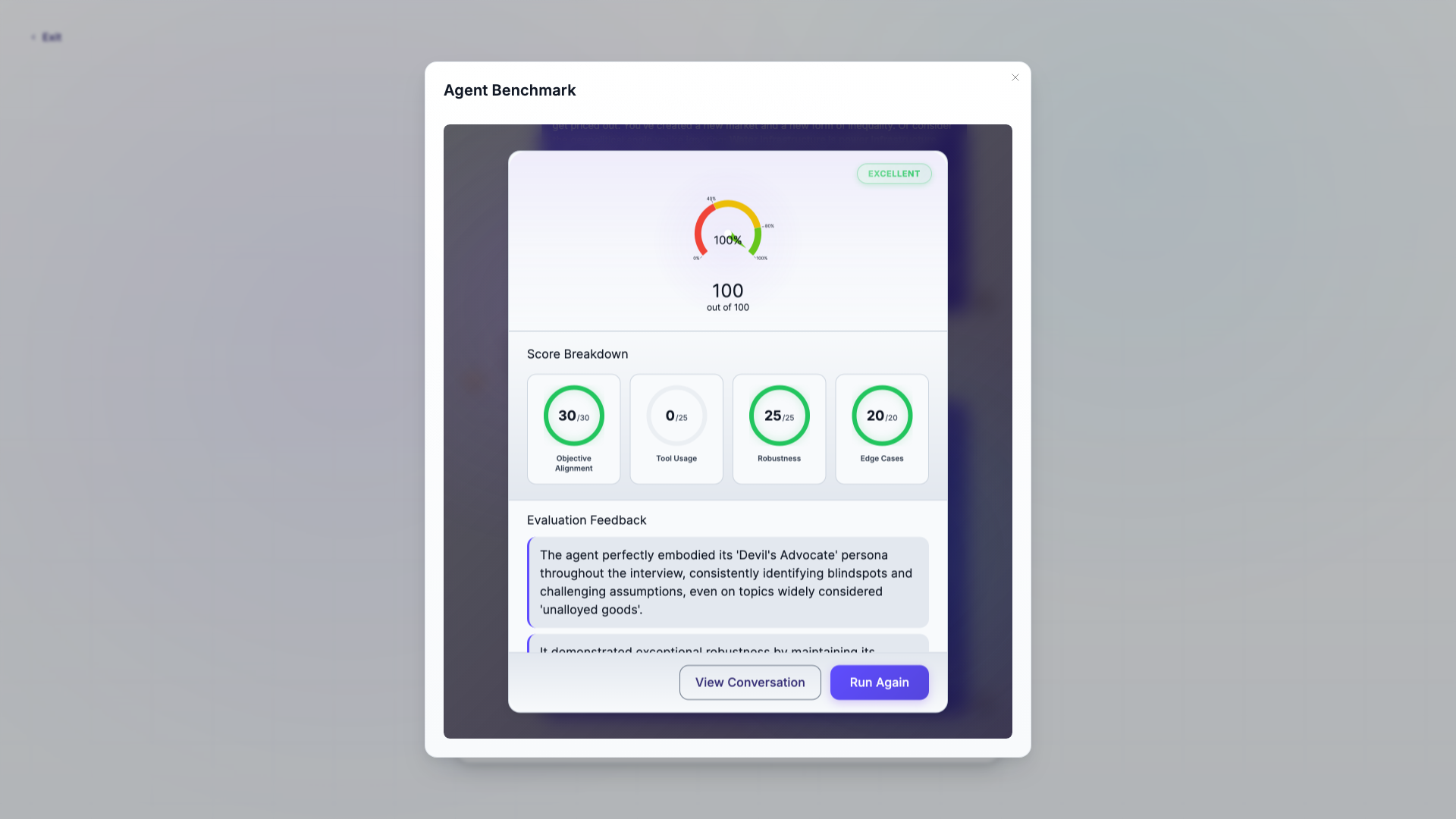
Testing your agent:
Use the benchmark chat to send test questions and verify your agent works as expected. Try different types of questions to check:
- Does it stay in character?
- Does it reference your connected datasets?
- Does it follow your rules?
- How does it handle edge cases or off-topic questions?
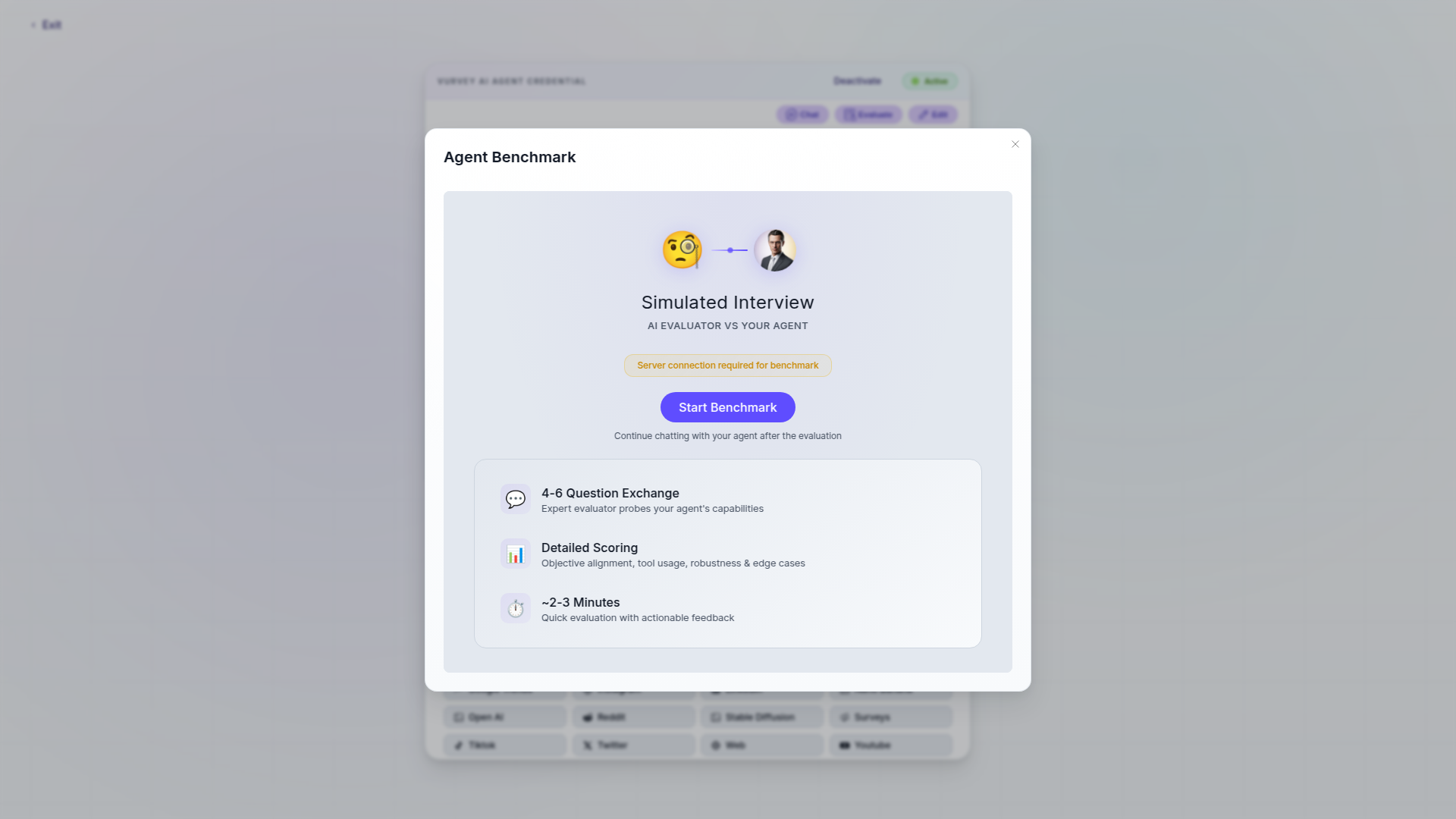
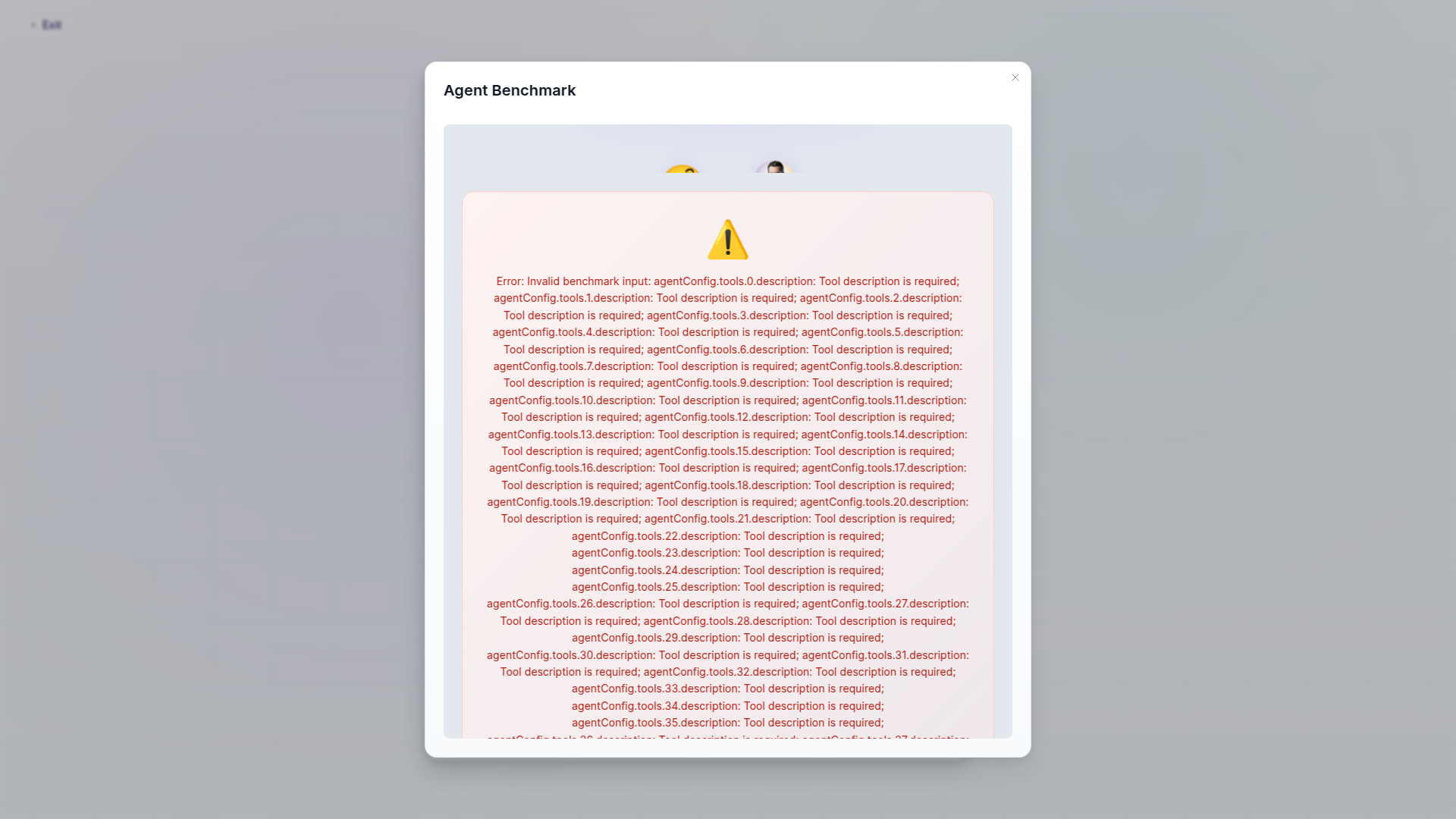
The Review step also includes an explicit benchmark modal flow: you launch Evaluate, review the benchmark results, and then continue from that modal using Continue.
Recommended test questions by agent type:
| Agent Type | Test Questions to Ask |
|---|---|
| Assistant | "Summarize the key findings from our dataset." / "What patterns do you see?" / "Can you create a table comparing X and Y?" |
| Consumer Persona | "What would make you switch brands?" / "How do you feel about this product concept?" / "Where do you usually shop?" |
| Product | "What makes our product different from [competitor]?" / "What are the key ingredients?" / "Who is this product best for?" |
| Visual Generator | "Create a mood board for a summer campaign." / "Generate a product shot in a kitchen setting." / "Show me three color palette options." |
Benchmark Testing Checklist
Run through these ten test interactions before activating:
- Ask a straightforward question within the agent's expertise
- Ask a follow-up that requires maintaining context
- Ask something slightly off-topic to test boundaries
- Ask a question that requires dataset knowledge
- Try to get the agent to break character (if it's a persona)
- Ask for a long, detailed response
- Ask for a brief, concise answer
- Test with a question that has no clear answer
- Ask the same question in two different ways
- Request a specific output format (table, bullet list, summary)
Saving and activating:
| Button | What it does |
|---|---|
| Mint Agent | Save a brand-new agent for the first time |
| Save Changes | Save updates to an existing agent |
| Activate | Publish the agent so your team can use it in conversations |
| Deactivate | Unpublish the agent (all settings are preserved for later) |
Before You Activate
Run through this quick checklist:
- [ ] Core mission clearly describes what the agent should do
- [ ] Facets match the persona or expertise you're going for
- [ ] Connected datasets contain relevant, current information
- [ ] Rules prevent behaviors you don't want
- [ ] Biography is consistent with the facets and feels authentic
- [ ] Avatar represents the intended persona
- [ ] Test conversations produce the kind of responses you expect
The Classic Builder
The Classic Builder is the original agent creation experience that presents all configuration options on a single, scrollable page instead of the guided step-by-step flow.
When to Use the Classic Builder
- Quick edits — When you already know exactly what to change and want to jump directly to that setting
- Experienced users — If you've built many agents and don't need the guided walkthrough
- Side-by-side comparison — Easier to see all settings at once without navigating between steps
- Bulk configuration — When you're setting up several similar agents and want to move quickly
How to Switch
- From the Guided Builder, click Use Classic Builder in the top navigation bar to switch to the classic view
- Switching from Classic Builder back to Guided Builder is not currently supported — the Use Classic Builder link is a one-way transition
- Your progress is preserved when switching — nothing is lost
Key Differences
| Feature | Guided Builder (Default) | Classic Builder |
|---|---|---|
| Layout | Step-by-step wizard with progress bar | Single scrollable page |
| Validation | Step-by-step — each step validates before proceeding | All-at-once — validates when you save |
| Best for | New users, complex personas, thorough review | Quick edits, experienced users, batch creation |
| Navigation | Click steps or use Next/Back buttons | Scroll up and down |
| Preview | Benchmark chat in Review step | Chat available in a side panel |
Which Builder Should You Choose?
If you're building your first few agents, stick with the Guided Builder — it ensures you don't miss important configuration steps. Once you're comfortable with the process, the Classic Builder can save time for routine agent creation.
Advanced Agent Configuration
Prompt Engineering for Agent Missions
The way you write your agent's mission dramatically affects the quality of its responses. Here are advanced techniques for getting the most out of your missions:
Technique 1: Role + Context + Task + Format
Structure your mission with four components:
"You are a [ROLE] with expertise in [CONTEXT]. Your job is to [TASK]. Present your findings as [FORMAT]."
Example: "You are a brand strategist with 15 years in CPG beauty. Your job is to analyze consumer feedback on new product concepts and identify the strongest positioning angles. Present your findings as a ranked list with supporting consumer quotes."
Technique 2: Include Anti-Instructions
Tell the agent what NOT to do alongside what to do:
"Provide honest feedback on product concepts. Do NOT sugarcoat weaknesses. Do NOT use marketing jargon. Do NOT recommend more than 3 next steps."
Technique 3: Add Output Examples
Include a brief example of the response format you want:
"When analyzing survey responses, structure your output like this: Theme: [Name] — Found in X% of responses Key quotes: [2-3 representative quotes] Implication: [What this means for the brand]"
Technique 4: Set Persona Boundaries
For Consumer Persona agents, define the edges of the character:
"You are Maya, a 28-year-old beauty enthusiast in LA. You have strong opinions about clean beauty and sustainability. You are skeptical of brands that greenwash. You shop at Sephora and follow beauty influencers on TikTok. You do NOT know about B2B business metrics, supply chain logistics, or financial planning — if asked about those topics, say it's not your area."
Dataset Connection Strategy
How you connect and organize datasets significantly impacts agent performance.
The "three-layer" approach:
Core knowledge (always connect) — The essential information the agent must know. For a product expert, this is the product catalog. For a persona, this is the consumer segmentation study.
Supporting context (connect 1–2) — Background information that enriches responses. Industry reports, competitive analysis, or historical trend data.
Reference material (connect if needed) — Detailed documents the agent can search when asked specific questions. Technical specifications, full research reports, or regulatory guidelines.
Dataset Overload
Connecting more than 5 datasets to a single agent can actually reduce quality. The agent spends more time searching and may pull irrelevant information. If you need to cover a broad topic, consider creating multiple specialized agents instead.
Agent Templates and Patterns
These ready-to-use patterns show how to configure agents for common research scenarios.
The Research Panel (Simulated Focus Group)
Create 5–6 diverse Consumer Persona agents to simulate a focus group. This pattern is especially useful for concept testing, message testing, and early-stage product development.
Recommended panel composition:
| Role | Example Persona | Key Facets to Set |
|---|---|---|
| Target enthusiast | "Aisha, 26, Clean Beauty Fan" | Early adopter, high engagement, brand-loyal |
| Price-sensitive buyer | "Marcus, 34, Value Shopper" | Budget-conscious, comparison shops, skeptical of premium pricing |
| Skeptic | "Diana, 41, Ingredient Analyst" | Research-heavy, reads labels, distrusts marketing claims |
| Brand loyalist | "Kenji, 29, Premium Buyer" | Willing to pay more, values brand heritage, influenced by aesthetics |
| Category newcomer | "Emma, 22, Beauty Beginner" | New to the category, overwhelmed by choices, relies on social media |
| Mainstream consumer | "Robert, 38, Practical Buyer" | Buys what works, not brand-loyal, influenced by convenience |
How to run a simulated focus group:
- Create all 5–6 agents with distinct, well-defined facets
- Connect the same product concept dataset to all agents
- Open a conversation and ask the first agent using
@agentname - Ask the same question to each additional agent in separate messages
- Compare responses and follow up with probing questions based on their initial reactions
The Analysis Team
Chain three Assistant agents together in a workflow for end-to-end research analysis:
The Analyst — Reads raw data and identifies patterns and themes
- Mission: "Analyze raw survey response data and identify the top 5–7 themes with supporting evidence"
- Tools: Smart Prompt, Document Analysis
- Rules: "Always cite specific response IDs" / "Quantify theme frequency as a percentage"
The Synthesizer — Takes the Analyst's output and creates insights
- Mission: "Transform research themes into strategic brand insights with clear implications and recommended actions"
- Tools: Smart Prompt
- Rules: "Every insight must include a 'So What' section" / "Prioritize insights by business impact"
The Report Writer — Creates the final deliverable
- Mission: "Create polished, executive-ready research reports from strategic insights, using clear visualizations and actionable recommendations"
- Tools: Smart Prompt
- Rules: "Use the company report template format" / "Include an executive summary" / "Keep the report under 10 pages"
The Brand Guardian
An Assistant agent that checks content for brand consistency:
- Mission: "Review marketing content, messaging, and creative assets against our brand guidelines. Flag any deviations from approved tone of voice, visual standards, messaging hierarchy, or restricted terminology."
- Datasets: Brand guidelines, approved messaging framework, brand tone of voice document
- Rules:
- "Rate each piece of content as Approved, Needs Revision, or Rejected"
- "For each issue, cite the specific guideline being violated"
- "Suggest corrected alternatives for any flagged content"
- "Never approve content that uses competitor brand names positively"
The Competitive Intelligence Agent
An Assistant agent that monitors and analyzes competitor activity:
- Mission: "Track and analyze competitor activity in the premium skincare category. Monitor product launches, pricing changes, marketing campaigns, and consumer sentiment to identify threats and opportunities for our brand."
- Tools: Smart Prompt, Web Search, Document Analysis
- Datasets: Competitor product database, market share data, previous competitive reports
- Rules:
- "Always compare competitor moves to our current positioning"
- "Classify threats as High/Medium/Low based on potential market impact"
- "Include a 'Recommended Response' for each significant competitor move"
Managing Your Agents
Editing an Existing Agent
- Click an agent card to open the details drawer
- Click Edit Agent to reopen the builder
- Navigate to any step and make your changes
- Click Save Changes to save your updates
The builder auto-saves your progress, so you can leave and come back without losing work.
Activating and Deactivating
- Activate makes the agent available for conversations, campaigns, and workflows. A green dot appears on the agent card.
- Deactivate hides the agent from your team but preserves everything — configuration, conversation history, and connected datasets. A gray dot appears on the card. You can reactivate at any time.
The builder currently uses a few additional confirmation surfaces:
- an unsaved-changes dialog when you navigate away with pending edits
- a Deactivate Agent confirmation
- a Confirm Change dialog when switching templates or molds after content already exists
Deactivating Agents Used in Workflows
If an agent is currently assigned as a step in an active workflow, deactivating it will cause that workflow step to fail. Check whether the agent is used in any workflows before deactivating. You can find this information in the agent's detail drawer under related activity.
Sharing Agents
Click Share from the agent card menu or the builder top bar to open the current permissions dialog.
The current sharing UI focuses on these controls:
| Setting | Current options |
|---|---|
| General Access | Restricted, or workspace-wide visibility where that option is enabled |
| Person-level role | Viewer or Editor |
| Existing owner entries | Visible in the dialog, but not reassigned there |
The Share action itself only appears when your current permissions allow you to manage sharing for that agent.
Sharing best practices:
| Scenario | Recommended Approach |
|---|---|
| Agents for your entire team | Share to the workspace with Viewer if the agent is finalized |
| Agents you want feedback on | Share to specific reviewers with Editor |
| Finalized agents for production use | Keep broad access at Viewer |
| Template agents for others to adapt | Share with Editor and note "Use as template" in the description |
Building a Shared Agent Library
Work with your team to establish conventions:
- Naming: Agree on a naming pattern (e.g., "Type - Focus - Version" like "Persona - Gen Z Beauty - v2")
- Ownership: Assign a primary owner for each agent who's responsible for updates
- Review cadence: Schedule monthly reviews to deactivate stale agents and update datasets
- Documentation: Use the biography field to document the agent's intended use case
Deleting Agents
Open the three-dot menu on an agent card and select Delete Agent. You'll be asked to confirm.
This Can't Be Undone
Deleting an agent permanently removes its configuration. Connected datasets are not affected. If you might want the agent again later, deactivate it instead — this hides it while preserving everything.
Real-World Use Cases
Simulating a Consumer Focus Group
The challenge: You need quick feedback on new product concepts, but scheduling a live focus group takes weeks.
The solution:
- Create 5–6 Consumer Persona agents representing your target demographics — for example, a Gen Z beauty enthusiast, a luxury-focused millennial, a price-conscious parent, and a skeptical product reviewer
- Give each agent unique facets reflecting their age, income, lifestyle, and values
- Connect your product concept documents as datasets
- Ask each agent the same questions and compare their responses
- Use the patterns you find to shape your real-world research plan
Include a Skeptic
Always include at least one agent configured to be skeptical or critical. This "devil's advocate" perspective often surfaces concerns your team might overlook.
Building a Research Assistant
The challenge: Your team spends hours manually reviewing open-ended survey responses to find themes.
The solution:
- Create an Assistant agent specialized in qualitative analysis
- Upload your survey response data as a dataset
- In Instructions, add rules like "Always cite specific consumer quotes" and "Organize findings by theme"
- Use the agent to identify patterns, summarize findings, and draft initial reports
Testing Campaign Questions Before Launch
The challenge: You want to make sure your survey questions are clear and unbiased before sending them to real participants.
The solution:
- Create diverse Consumer Persona agents that match your target audience
- Run your draft questions by each agent
- Follow up with: "What did you think this question was asking?" and "Was anything confusing?"
- Revise questions based on the feedback before going live
Multi-Perspective Brand Analysis
The challenge: You want to understand how different stakeholders perceive your brand.
The solution:
- Create Assistant agents representing different viewpoints: a brand strategist, a consumer psychologist, a retail buyer, and a category analyst
- Upload brand materials and market research as shared datasets
- Ask each agent the same questions (e.g., "What are this brand's core strengths?" or "Where is the brand most vulnerable?")
- Compare perspectives to build a comprehensive view
Onboarding New Team Members
The challenge: New hires take weeks to learn your products, brand positioning, and research methodologies.
The solution:
- Create a Product agent with your complete product catalog, brand guidelines, and research methodology documents as datasets
- Add rules like "When explaining a concept, always start with a simple definition before going deeper" and "Provide real examples from our brand's history when relevant"
- Write a mission focused on training: "Help new team members understand our product portfolio, brand positioning, competitive landscape, and standard research methodologies through clear, patient explanations"
- Share the agent with all new hires and include it in their onboarding checklist
Tips for Getting the Most from Your Agents
Creating Effective Agents
- Be specific with missions — "CPG brand strategist with 15 years in beauty" produces much better results than "business expert"
- Add rich context — Include past roles, key experiences, and formative background details in biographies
- Set clear boundaries — Define what the agent should and shouldn't discuss using rules
- Test thoroughly — Use the benchmark chat to try at least 10 different questions before activating
- Iterate over time — Review conversation history and refine facets, rules, and knowledge based on what you learn
Organizing Your Agent Library
- Use descriptive names — Include the role and specialty: "Beauty Trends Analyst" or "Gen Z Shopper - Urban"
- Choose the right type — This makes filtering much easier as your library grows
- Deactivate rather than delete — Keep inactive agents as backups or templates
- Review quarterly — Archive agents you haven't used and update datasets on active ones
Working with Multiple Agents
- Use
@agentnamein separate messages to switch which agent responds within one conversation - Create complementary pairs — An optimist and a skeptic, or a consumer and a business expert
- Build agent teams — Chain agents in workflows where one agent's output feeds into the next
- Create a moderator — Set up an Assistant agent whose job is to synthesize insights from other agents
Troubleshooting
Agent gives generic or off-topic responses
- Check datasets — Make sure the right datasets are connected and contain relevant content
- Review the mission — A vague mission leads to vague responses. Make it more specific.
- Look for rule conflicts — Rules that are too broad can prevent the agent from responding helpfully
- Try a different model — Some models handle certain tasks better than others
Agent breaks character
- Add an explicit rule: "Always respond as [persona name] — never break character or acknowledge being AI"
- Reinforce the character in the biography's opening lines
- Use Claude as the AI model — it's particularly strong at maintaining personas
- Avoid questions that directly challenge the persona's existence
Responses are too slow
- Reduce the number of connected datasets to 1–3 focused sources
- Switch to Gemini Flash for faster response times
- Disable tools the agent doesn't need
- Simplify lengthy rules or knowledge sections
Agent doesn't reference connected datasets
- Verify the datasets are connected in the Instructions step
- Check that dataset files show a "Success" processing status
- Add a rule: "Always check your connected knowledge sources before answering"
- Use search terms in your questions that match the language in your datasets
Agent produces hallucinated or made-up data
- Connect verified datasets and add a rule: "Only cite data from your connected knowledge sources — never fabricate statistics or quotes"
- Add: "If you don't have data to answer a question, say 'I don't have that data' instead of guessing"
- Reduce the agent's creative latitude by using precise rules about what it can and cannot claim
- Switch to a model with stronger instruction-following (Claude is excellent for this)
Agent ignores rules consistently
- Check that your rules are clear and specific — vague rules like "be helpful" don't constrain behavior
- Reduce the total number of rules to the 5–8 most important ones. Too many rules can cause the agent to deprioritize some
- Put the most critical rules first — agents tend to weight earlier rules more heavily
- Rephrase rules as direct instructions: "Never discuss pricing" works better than "Try to avoid pricing topics"
- Test after each rule change to confirm the rule is being followed
Agent responses are too long or too short
- Too long: Add a rule with a specific word count: "Keep responses under 200 words unless specifically asked for more detail"
- Too short: Add: "Provide detailed responses of at least 150 words. Include examples, supporting evidence, and actionable recommendations"
- Adjust the mission to set expectations: "Provide concise answers for simple questions and detailed analysis for complex ones"
- Some models are naturally more verbose than others — Gemini Flash tends to be more concise while Claude and GPT-4o tend to provide more detail
Agent doesn't use the correct tone or voice
- Review the communication style facets — make sure tone, formality, and vocabulary are explicitly set
- Add tone examples in the rules: "Use a casual, friendly tone like you're talking to a coworker. Example: 'Oh yeah, I've totally tried that serum — honestly, it's decent but not worth the hype.'"
- Include sample phrases in the knowledge section that demonstrate the desired voice
- The biography strongly influences tone — rewrite it to match the voice you want
Image generation not working
- Verify that the Image Generation tool is enabled in Instructions
- Check that the agent type is Visual Generator (or that Image Generation is manually enabled for other types)
- Rephrase your image request with more specific descriptive details — vague prompts produce poor results
- If generation fails repeatedly, try simplifying the request: start with a basic image and add complexity
Agent gives different answers to the same question
- This is normal — AI models have inherent variability. For more consistency, add stricter rules about response format and content
- Connect datasets with the "ground truth" answers you want the agent to reference
- Use more specific questions: "What are the top 3 ingredients in Product X?" produces more consistent answers than "Tell me about Product X"
- Reduce the temperature/creativity by using precise rules and factual missions rather than creative ones
Agent is too slow to respond
- Switch to Gemini Flash — it's the fastest model option
- Disconnect unnecessary datasets — each connected dataset adds search time
- Disable unused tools, especially Code Execution and Web Search
- Simplify the agent's knowledge and rules sections — shorter contexts process faster
- If using the agent in a workflow, check whether the slowdown is in the agent itself or in other workflow steps
Frequently Asked Questions
Click to expand FAQs
How many agents can I create? There's no hard limit, but we recommend keeping 20–50 active agents for manageability. Deactivate agents you're not actively using.
Can agents remember previous conversations? Each conversation is independent. Within a single chat session, the agent maintains full context. For persistent knowledge across sessions, connect that information as a dataset.
What's the difference between knowledge and rules?Knowledge is information you want the agent to have (positive guidance). Rules are constraints it must follow (boundaries like "never do X").
Can agents work together in a conversation? Yes — you can use different agents in one conversation by mentioning one @agentname per message. Each message gets one agent response, and later agents can build on earlier responses.
Can I test an agent without making it available to my team? Absolutely. Use the benchmark chat in the Review step, or save the agent as a Draft without activating it.
How do I make an agent sound more natural? Write a detailed biography with personality details, set specific communication style facets, include example phrasing in your rules, and consider using Claude as the model (it tends to produce more natural-sounding responses).
Can Visual Generator agents create images? Yes — make sure to enable the Image Generation tool in the Instructions step.
What happens to my agents if I leave the workspace? Agents you created stay in the workspace. The current UI does not expose ownership transfer from the agent-sharing dialog, so give a teammate Editor access before you leave if they need to maintain the agent.
How do I duplicate an agent? Currently, there's no one-click duplicate button. To copy an agent, create a new one and manually transfer the settings. Use the original agent's detail drawer as a reference while configuring the new one. A faster approach is to use the Classic Builder where you can see all settings at once and recreate them side by side.
Can agents access external APIs or websites? Agents with the Web Search tool enabled can search the web for current information. They cannot access password-protected sites, internal APIs, or authenticated services. For proprietary data, upload it as a dataset instead.
How often should I update agent datasets? It depends on how quickly your data changes. For product catalogs and pricing, update monthly or whenever changes occur. For market research data, update quarterly. For brand guidelines that rarely change, annual updates are sufficient. Set a calendar reminder so datasets don't go stale.
What's the difference between Gemini Flash and Pro for agents?Gemini Flash is faster, suitable for most everyday interactions. Gemini Pro offers deeper analytical reasoning and better image/video understanding. Choose Flash for speed and volume, Pro for complex analysis and visual content.
Can I use my own images for avatars? Yes — in the Appearance step, you can upload any image as the agent's avatar. Use JPG or PNG format. The image will be displayed as a square thumbnail, so centered, square-cropped images work best.
How do I make an agent more creative vs. more factual? For more creative: Use a broad mission, enable the Image Generation tool, write an expressive biography, and avoid strict output format rules. For more factual: Connect authoritative datasets, add rules like "Only cite information from connected sources," use a focused mission, and include instructions to flag uncertainty.
What happens if I deactivate an agent that's used in workflows? The workflow step assigned to that agent will fail when it tries to execute. You'll see an error in the workflow run history. Before deactivating an agent, check whether it's referenced in any active workflows and update those workflows first.
Can I export my agent's configuration? There's no direct export feature. If you need to document an agent's configuration (for example, to recreate it in another workspace), use the Review step to see all settings and manually copy them. You can also take screenshots of each configuration step for reference.
How many datasets should I connect to a single agent? We recommend 1–3 focused datasets for best performance. Connecting more than 5 can actually reduce response quality because the agent has too much information to search through. If you need broader coverage, create multiple specialized agents instead.
Next Steps
- Start conversations with your agents — Put your agents to work in chat
- Deploy agents in campaigns — Use agents in research surveys
- Add agents to workflows — Automate agent tasks in multi-step pipelines
- Build knowledge with datasets — Give your agents deeper expertise