
Logging In
This guide walks you through signing in to Vurvey so you can get started with your research.
Opening Vurvey
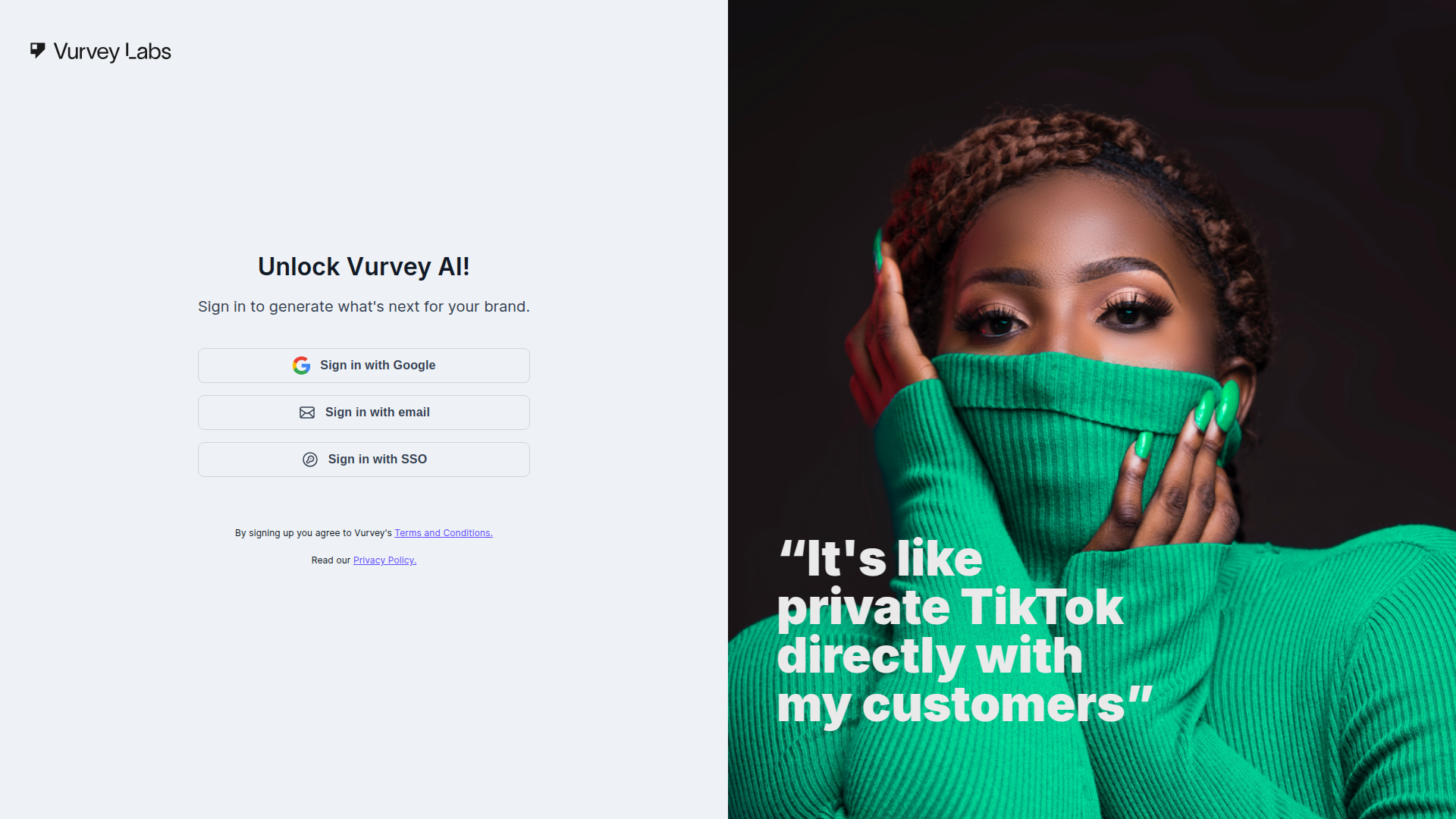
To access Vurvey, open your web browser and go to the Vurvey URL provided by your organization. You'll see the Vurvey welcome screen with your sign-in options.
Supported Browsers
Vurvey works best in modern browsers: Google Chrome (recommended), Microsoft Edge, Mozilla Firefox, and Safari. For the best experience — especially with video recording and playback — use the latest version of Chrome.
Sign-In Options
Vurvey offers three ways to sign in, depending on how your organization has configured access:
| Option | When to Use |
|---|---|
| Sign in with Google | If your organization uses Google Workspace, this is the fastest way in. Just click and select your Google account. |
| Sign in with email | Use this if you have a Vurvey-specific email and password. |
| Sign in with SSO | If your company uses enterprise single sign-on (such as Okta or Azure AD), select this option and follow your company's login flow. |
Which option should I choose?
If you're not sure which sign-in method to use, check with your team or workspace administrator. Most organizations will have a preferred method already set up for you.
Signing In with Google
If your organization uses Google Workspace:
- Click Sign in with Google on the welcome screen
- Select your Google account from the popup (or enter your Google email if prompted)
- If this is your first time, you may be asked to grant Vurvey permission to access your basic profile information
- You'll be signed in automatically and taken to your workspace
Multiple Google Accounts
If you're signed into multiple Google accounts in your browser, make sure you select the one associated with your Vurvey workspace. Using a personal Gmail account when your organization expects your work email can cause access issues.
Signing In with Email
If you're using email and password to sign in:
- Click Sign in with email on the welcome screen
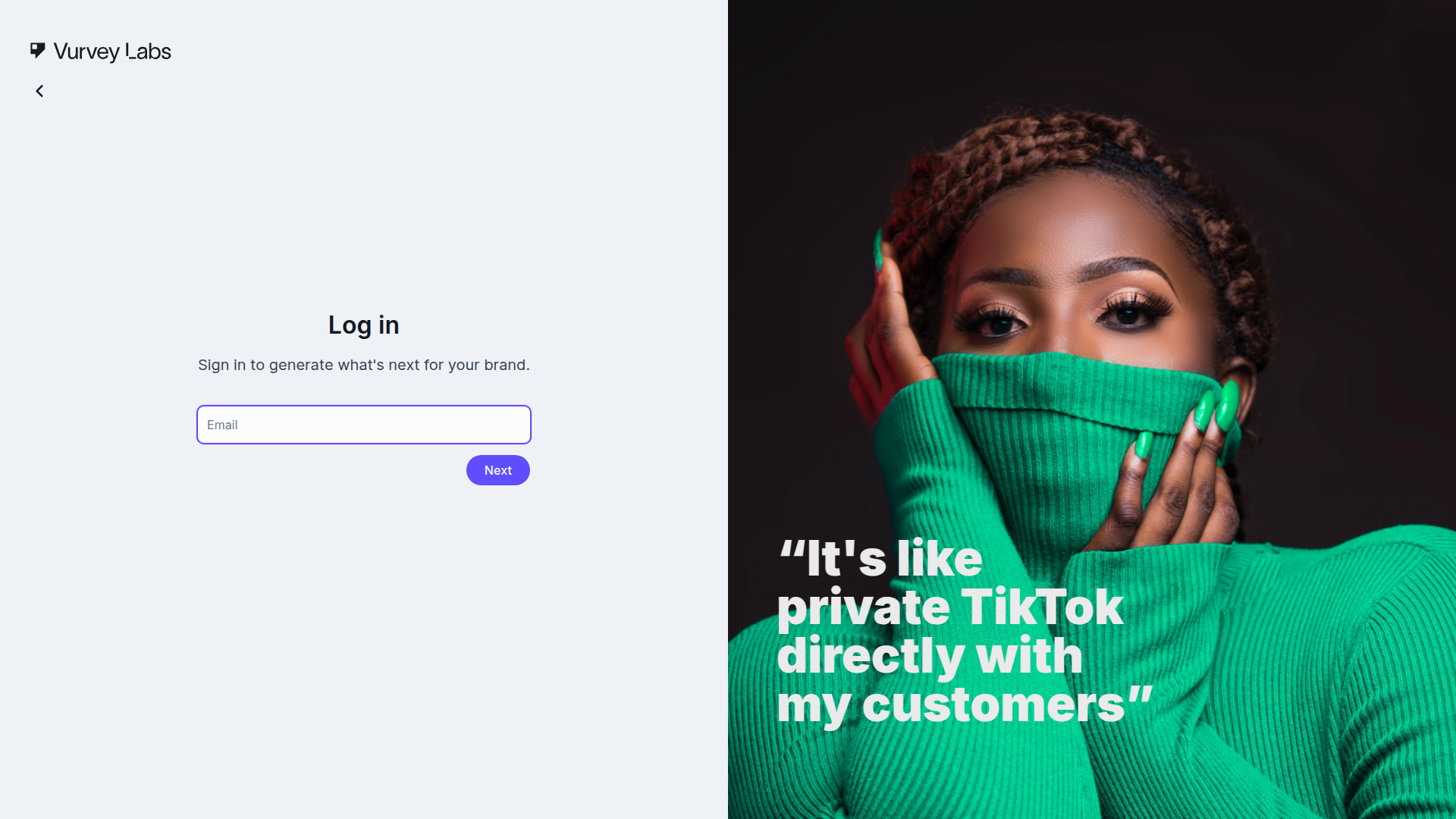
- Enter the email address associated with your Vurvey account
- Click Next
- Enter your password
- Click Log In
Forgot Your Password?
If you can't remember your password:
- Click Sign in with email
- Enter your email address and click Next
- On the password screen, click the Trouble signing in? link
- Follow the instructions to reset your password — you'll receive an email with a reset link
- Create a new password and sign in
Check Your Spam Folder
If you don't receive the password reset email within a few minutes, check your spam or junk folder. If it's not there, ask your workspace administrator to verify your email address is correct.
Signing In with SSO
If your organization uses enterprise single sign-on:
- Click Sign in with SSO on the welcome screen
- Enter your company email address or SSO identifier
- You'll be redirected to your company's identity provider (Okta, Azure AD, etc.)
- Complete the authentication process using your corporate credentials
- You'll be redirected back to Vurvey and signed in
SSO Configuration
SSO is set up by your organization's IT team. If you encounter errors during SSO login, contact your IT department — the issue is likely on the identity provider side, not within Vurvey.
What You'll See After Signing In
Once you've signed in successfully, you'll land on the Home page — your main workspace for AI-powered conversations. From here, you can start chatting with an AI Agent right away, or use the sidebar to navigate to any section of the platform.
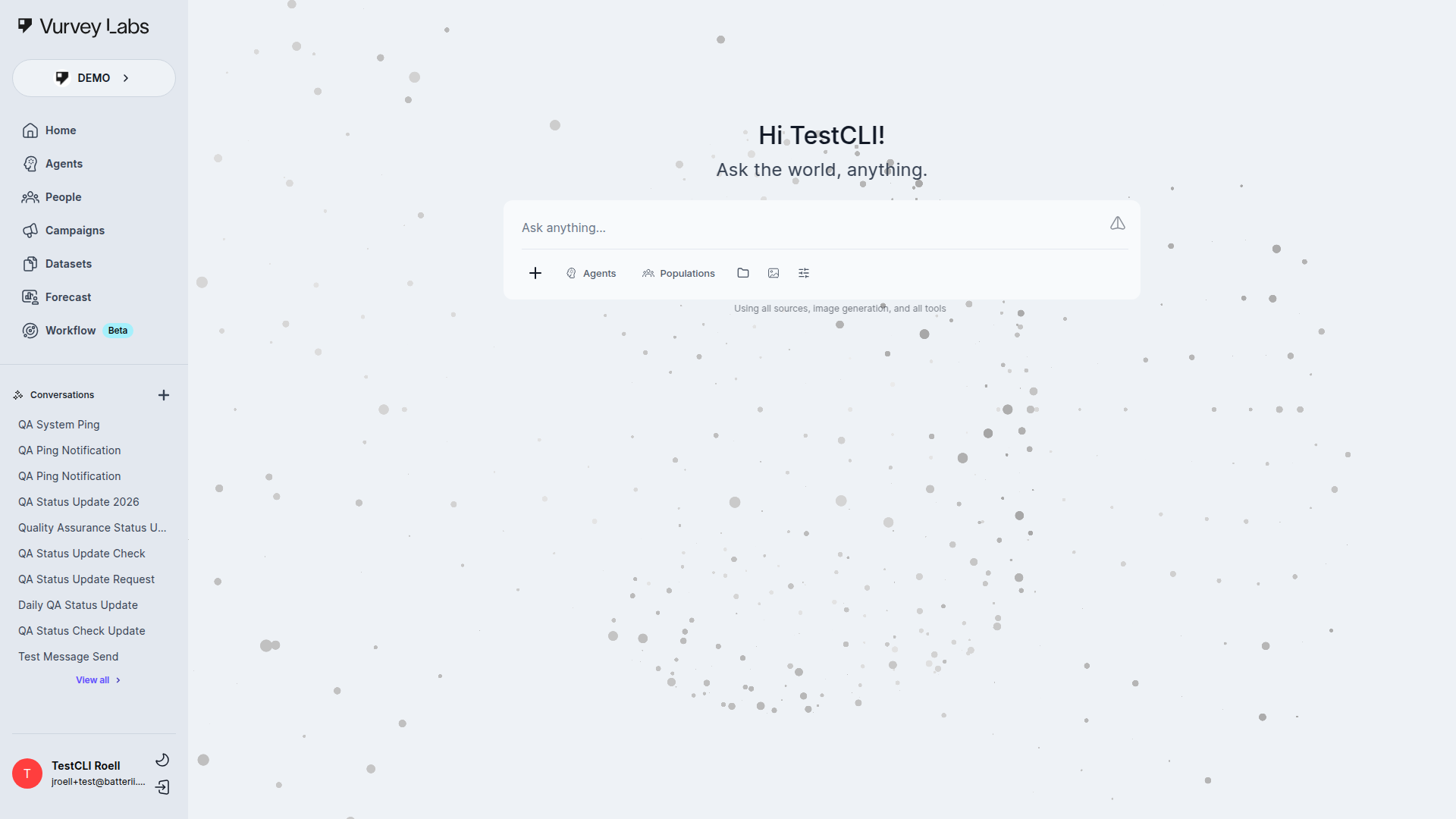
The left sidebar gives you quick access to the sections enabled for your workspace. People and Campaigns are always visible. Home, Agents, and Datasets require chatbotEnabled to be true for the workspace. Feature-flagged areas such as Forecast or Workflow appear when enabled. You'll also see your workspace name and your profile at the bottom.
Choosing a Workspace
If you belong to more than one workspace — for example, if you work across different brands, teams, or client accounts — you may see a workspace selection screen after signing in.
Workspace Selection
- Each workspace is a completely separate environment with its own agents, campaigns, datasets, and team members
- Click on the workspace you want to enter
- You can switch workspaces at any time using the workspace selector at the bottom of the left sidebar
Workspace Organization
Most organizations use workspaces to separate different brands, business units, or client accounts. If you're not sure which workspace to use, ask your administrator. You can always switch later.
Switching Workspaces
To switch between workspaces while you're working:
- Look at the bottom of the left sidebar — you'll see your current workspace name
- Click on the workspace name to open the workspace picker
- Select the workspace you want to switch to
- The page will refresh with the new workspace's content
Workspace Data Is Separate
Each workspace has its own agents, campaigns, datasets, people, and conversations. Work you do in one workspace is not visible in another. Make sure you're in the correct workspace before starting your research.
First-Time Setup
If this is your first time logging into Vurvey, here are a few things to do:
1. Explore the Home Page
Start by typing a question in the chat box. Try something simple like "What can you help me with?" to see how the AI responds.
2. Check Your Profile
Click your avatar or name at the bottom of the sidebar to view and update your profile information.
3. Browse Available Agents
Navigate to the Agents section in the sidebar to see which AI agents are available in your workspace. Your team may have already created agents tailored to your research needs.
4. Review Shared Resources
Check Campaigns, Datasets, and Workflows to see what your team has already set up. You may find existing research you can build on.
Browser Requirements
| Feature | Minimum Requirement |
|---|---|
| Browser | Chrome 90+, Edge 90+, Firefox 88+, Safari 14+ |
| JavaScript | Must be enabled |
| Cookies | Must be enabled (for authentication) |
| Camera/Microphone | Required for video recording in campaigns |
| Pop-ups | Allow pop-ups from Vurvey domain (for Google Sign-In and SSO) |
For Best Performance
- Use Google Chrome for the most consistent experience
- Keep your browser updated to the latest version
- Disable browser extensions that block cookies or JavaScript on the Vurvey domain
- Allow notifications if you want to receive alerts about campaign responses or workflow completions
Mobile Access
Vurvey's web interface is accessible from mobile browsers, but the full experience is optimized for desktop and laptop screens. For the best experience:
- Use a desktop or laptop for building agents, creating campaigns, and designing workflows
- Mobile browsers work well for reviewing results, chatting with agents, and monitoring campaign progress
- Campaign respondents (the people answering your surveys) use the dedicated Vurvey mobile app, available on iOS and Android
Troubleshooting
Can't sign in?
- Double-check that you're entering the correct email address
- Make sure Caps Lock is off when typing your password
- Look for the Trouble signing in? link on the password screen to reset your password
- Clear your browser's cache and cookies, then try again
- Try using an incognito/private browsing window
- If you're still having trouble, reach out to your workspace administrator for help
SSO not working?
- Make sure you're selecting the correct SSO provider for your organization
- Try clearing your browser's cache and cookies, then sign in again
- Check with your IT department to confirm your SSO access is configured
- Ensure your corporate account is active and not locked out
- Try a different browser to rule out extension conflicts
Google Sign-In not working?
- Make sure pop-ups are allowed for the Vurvey domain
- Check that you're selecting the correct Google account (work vs. personal)
- Try signing out of all Google accounts and signing in fresh
- Disable browser extensions that might interfere with the Google sign-in popup
- If your organization recently migrated to Google Workspace, your admin may need to update Vurvey's Google integration
Page loads but nothing happens after sign-in?
- Your session may have expired — refresh the page and try again
- Check your internet connection
- Try clearing your browser cache
- If the issue persists, try a different browser
"No workspace found" or similar error?
- You may not have been invited to any workspace yet — ask your administrator to send you an invitation
- If you were recently added, try signing out and back in
- Make sure you're using the same email address that was used to invite you
Next Steps
Now that you're signed in, here's where to go next:
- Explore the Home chat interface — Start a conversation with an AI Agent
- Browse your Agents — See what AI Agents are available in your workspace
- Check out the Quick Reference — A cheat sheet for common tasks