
Home
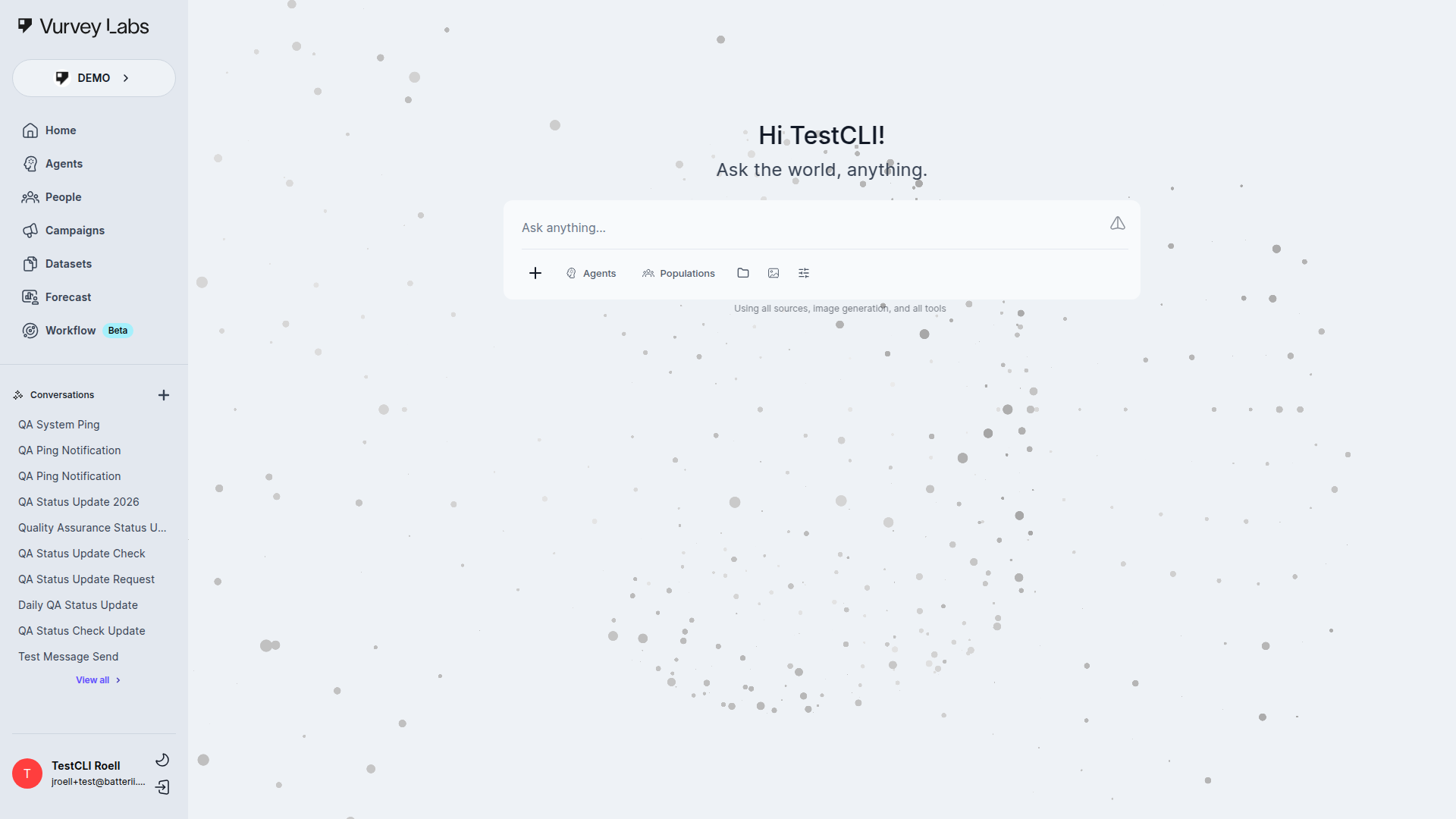
The Home page is your AI-powered research assistant. It's the first thing you see after logging in — a conversational workspace where you can ask questions, analyze data, and generate insights.
Getting Started
When you arrive at Home, you'll see a greeting — "Hi [Your Name]! What might we create today?" — along with a text input at the bottom of the screen. Just type a question or request and press Enter to start a conversation.
Try asking something like:
- "Summarize the key themes from our latest beauty brand survey"
- "What are the top consumer complaints about our packaging?"
- "Write an executive summary of this quarter's research findings"
The Chat Toolbar
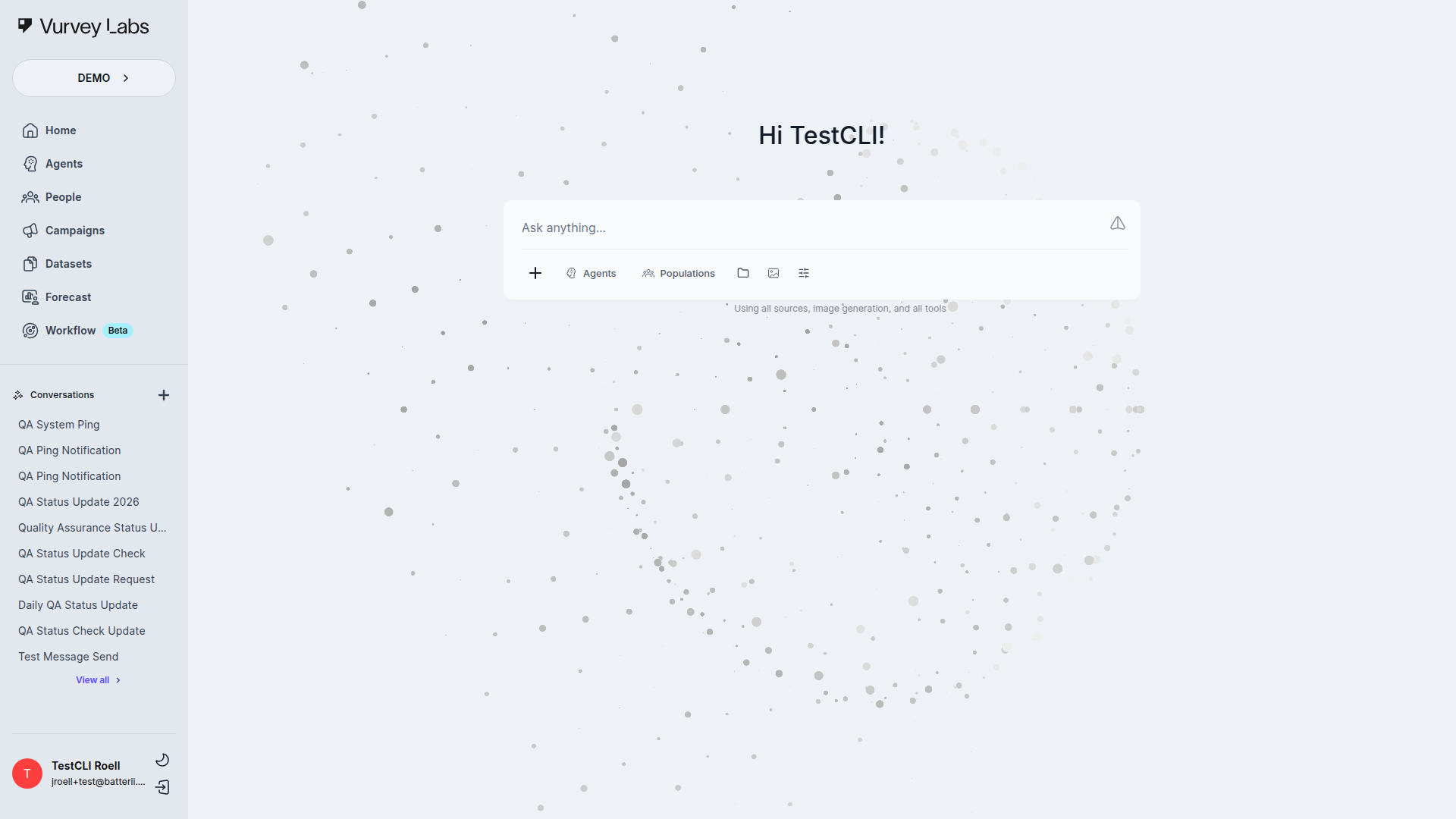
Above the text input, you'll find a row of toolbar buttons that control how the AI responds to your messages.
Agents
Click the Agents button to choose which AI persona answers your questions. Each agent has its own personality, expertise, and knowledge base. For example, you might have:
- A consumer persona that responds as if they're a real customer in your target demographic
- An analyst that specializes in finding patterns in survey data
- A strategist that helps you develop positioning and messaging
You can also mention an agent by name mid-conversation by typing @ followed by their name — for example, @MarketAnalyst, what patterns do you see in this data?
Multi-Agent Conversations
Use exactly one @AgentName per message. Each user message returns one agent response.
Switching Agents Mid-Conversation
You can change your active agent at any point in a conversation. When you switch agents:
- The new agent can see the full conversation history so far
- The agent's unique personality and expertise immediately take effect
- Sources you've selected remain connected — the new agent can access the same data
- Previous responses from other agents stay in the conversation thread
Quick Agent Switching
If you only need a quick answer from a different agent, use the @mention syntax instead of switching your active agent. This keeps your primary agent selected while routing that single message to the mentioned agent.
The Agent Selector Modal
Clicking Agents opens the current agent-picker modal:
- it lists the published agents available to your workspace
- it exposes agent-type filter chips and search
- it highlights the currently active agent
- it uses explicit Cancel and Use selected actions
The Population Persona Modal
When the Populations chip is enabled, it opens a separate two-step chooser:
- first you search and pick a population
- then you drill into the personas inside that population
- finally you commit with Choose persona
If you try to exit with an in-progress selection, the modal can show an unsaved-exit confirmation.
Sources
Click the Sources button (tooltip: "Select Datasets and/or Campaigns") to connect your data to the conversation. You can select:
- Datasets — documents, spreadsheets, or other files you've uploaded
- Campaigns — survey responses you've collected through Vurvey
When sources are connected, the AI reads and cites your actual data rather than relying on general knowledge. This is essential for getting accurate, evidence-based insights.
Focused Sources Get Better Results
Selecting one or two relevant sources usually produces sharper answers than selecting everything at once. The AI can focus on what matters instead of sifting through unrelated data.
The Sources Dropdown
Before you get into the full selector, the Sources control also exposes a quick dropdown:
| Quick action | What it does |
|---|---|
| Attach Datasets | Opens the source selector on the dataset flow |
| Attach Campaigns | Opens the source selector on the campaign flow |
| Turn on/off sources | Temporarily includes or excludes workspace sources without clearing existing selections |
The Sources Selector Modal
When you click the Sources control, the current modal opens around Campaigns, Datasets, and supporting file/media drill-ins.
| Entry Point | What It Contains | Best For |
|---|---|---|
| Campaigns | Survey campaigns and their collected responses | Analyzing survey results and response patterns |
| Datasets | Uploaded file collections | Bringing reports, spreadsheets, and media into the chat |
| All files / drill-ins | Individual files, questions, videos, and audio reached from the modal flow | Narrowing the scope to a specific asset or subset |
Campaigns is the fastest way to attach a whole study.
Datasets is the fastest way to attach a whole document collection.
For more targeted work, the modal can also save question-, file-, video-, and audio-level selections into the conversation even though those are not always presented as primary top-level tabs.
At the modal level, the current source picker also includes:
- search
- Clear all
- Cancel
- Submit
If you try to close it after changing selections, the UI can show an unsaved-selection exit confirmation.
Source Selection Strategy
Start narrow, then broaden. Select one campaign or a few files first. If the AI's answers need more context, add additional sources. This approach gives you more focused, citation-rich responses.
Source Limits
There's a practical limit to how many sources the AI can process effectively in a single conversation. If you select too many, responses may become slower or less focused. Aim for no more than 5–10 sources at a time for the best experience.
Images
Click the Images button (picture icon, tooltip: "Select an image model") to enable AI image generation. Once enabled, you can ask the AI to create visuals — for example, "Create a mood board for our new product line" or "Generate a logo concept for a natural skincare brand."
Available Image Models
Select an image generation model from the dropdown:
| Model | Best For |
|---|---|
| Nano Banana | Vurvey's proprietary model for fast, versatile image generation |
| OpenAI | Photorealistic images, product mockups, lifestyle scenes |
| Google Imagen | High-fidelity images with strong text rendering and detail |
| Stable Diffusion | Artistic styles, concept art, creative visuals |
The bottom option in the dropdown lets you turn image generation on or off.
Choosing an Image Model
If you're unsure which model to use, start with Nano Banana for quick iterations, OpenAI for realistic product and marketing imagery, or Stable Diffusion for more artistic and creative concepts. You can always regenerate with a different model if the first result isn't what you need.
Image Generation Tips
- Be descriptive — Include details like style, color palette, composition, and mood. "A modern minimalist skincare bottle on a marble countertop with soft natural lighting" will produce better results than "a skincare bottle."
- Specify dimensions — Ask for "landscape," "portrait," or "square" to control the aspect ratio
- Iterate — Ask the AI to "make it warmer," "add more negative space," or "try a different angle" to refine results
- Reference styles — Mention visual styles like "flat design," "watercolor," "3D render," or "vintage photography"
Tools
Click the Tools button (sliders icon, tooltip: "Select a search tool") to give the AI access to web research and social media tools. Select a specific tool from the dropdown or let the AI use all available tools automatically.
Typing / in the chat composer also opens a contextual slash-command popup for quickly selecting supported web, social, and image tools.
Available Tools
| Tool | What It Searches |
|---|---|
| Web Research | General web search for current information, news, and trends |
| TikTok | TikTok content, trends, and creator insights |
| Reddit discussions, threads, and community sentiment | |
| LinkedIn posts, professional content, and industry discussions | |
| YouTube | YouTube videos, comments, and channel content |
| X/Twitter | Posts, trending topics, and public conversations on X |
| Instagram posts, reels, and visual content trends |
The bottom option in the dropdown lets you turn tools on or off.
What Tools Can Find
- Current industry news and trends
- Competitor websites, press releases, and public data
- Market reports and published research (publicly available)
- Social media trends, sentiment, and public discussions
- Product listings and pricing information
- Platform-specific content from TikTok, Reddit, YouTube, and more
What Tools Cannot Find
- Paywalled or subscription-only content
- Private social media posts or closed communities
- Real-time stock prices or live data feeds
- Content behind login walls
Combining Tools with Sources
For the most powerful analysis, enable both Tools and Sources together. Ask questions like: "Based on our consumer survey data, how do our findings compare to the latest industry trends?" The AI will reference your data and supplement it with current web information.
Social Media Research
Select a specific social media tool (like TikTok or Reddit) when you want targeted platform insights. For example, select TikTok and ask "What are the trending skincare routines this month?" or select Reddit and ask "What are consumers saying about our brand on Reddit?"
Model Selector
If available, a model selector button lets you choose which AI model powers your conversation. This control requires both the agentBuilderV2Active flag and the chat model selector feature flag to be enabled for your workspace. The default setting, Auto-Select, automatically picks the best model for your task. You can also choose a specific model if you prefer.
How Auto-Select Works
When set to Auto-Select, Vurvey evaluates your question and the tools you've enabled, then routes your request to the model best suited for the task:
- Complex analytical questions with large datasets may use a more capable model
- Simple follow-up questions may use a faster model for quicker responses
- Image generation requests are automatically routed to your selected image model
When to Override Auto-Select
Most users never need to change the model manually. However, if you notice responses are too brief for complex questions, try manually selecting a more powerful model. If responses are slow for simple questions, try selecting a faster model.
How Omni Mode Works
You don't need to pick a "mode" manually — Vurvey uses Omni Mode by default, which intelligently decides which tools to use based on your question and what you've enabled in the toolbar.
Chat Modes
Vurvey operates in different chat modes depending on what capabilities you enable:
- Conversation mode — Basic chat with no additional tools
- Smart Sources mode — AI intelligently retrieves information from your connected datasets and campaigns
- Smart Tools mode — AI uses curated tool groups automatically
- Omni mode (default) — Full capabilities: all sources, all tools, and image generation
- Manual Tools mode — You select specific tools for the AI to use
The mode automatically adjusts based on your toolbar selections.
| What you've enabled | How the AI behaves |
|---|---|
| Everything on (default — Omni Mode) | The AI can use all enabled capabilities — workspace sources, web/social research tools, and image generation — depending on your question |
| Only Sources selected | The AI focuses exclusively on your connected datasets and campaigns, citing specific data points |
| A specific tool or image model selected | The AI uses that specific tool to answer your question |
| Nothing selected | Simple conversation mode — the AI uses only the conversation context and its base model behavior |
You can toggle individual categories on or off using the Turn on/off option in each toolbar dropdown. The status display below the toolbar always shows what the AI currently has access to.
Attaching Files
Click the upload button (to the left of the text input) to start the current upload flow. In master, that flow uses two dialogs:
- an Upload Files modal where you drag in or pick files
- a Create new dataset modal that lets you name the uploaded collection so it can be reused as a source later
The upload modal lets you remove files before continuing and currently accepts up to 10 files in one upload session. If you close it while files are queued, the UI asks you to confirm that you want to cancel the upload.
The AI can analyze:
- Documents — PDF, Word, PowerPoint, Excel, CSV, and text files
- Images — PNG, JPG, and GIF for visual analysis
- Videos — MP4 and MOV
Example: Upload a competitor's brochure and ask, "How does their messaging compare to ours?" Or paste a product photo and ask, "What design elements make this packaging stand out?"
Supported File Types and Limits
| File Type | Formats | Size Limit | What the AI Can Do |
|---|---|---|---|
| Documents | PDF, DOC, DOCX, PPTX, TXT, JSON | Up to 50 MB | Read text, extract key points, summarize, compare across documents |
| Spreadsheets | XLSX, CSV | Up to 25 MB | Analyze data, identify trends, generate charts, calculate statistics |
| Images | PNG, JPG, GIF, WEBP | Up to 10 MB | Describe visual content, analyze design elements, read text in images, compare product photos |
| Videos | MP4, MOV, AVI | Up to 100 MB | Transcribe audio, summarize content, identify key moments |
| Audio | MP3, WAV, M4A, OGG, AAC, WEBM, FLAC | Up to 25 MB | Transcribe speech, summarize discussions, extract quotes |
File Attachment Tips
- Multiple files — You can attach several files in a single message. The AI will analyze them together, making it easy to compare documents side by side.
- Drag and drop — Simply drag files from your desktop or file explorer directly onto the chat input area.
- Inline analysis — When you upload an image, the AI automatically sees it and can describe or analyze it without further prompting.
- Reference previous uploads — Files you attach stay available throughout the conversation. You can reference them in later messages — "Go back to the spreadsheet I uploaded earlier and break down the data by region."
Best Results with File Attachments
When uploading documents for analysis, tell the AI what to focus on. Instead of just uploading a 50-page report and asking "what do you think?", try "Review pages 10–15 of this report and summarize the consumer preference findings."
Large File Processing
Very large files (over 25 MB) may take a moment to process. You'll see a progress indicator while the file uploads. Wait for it to complete before sending your message.
Reading AI Responses
Each AI response includes several helpful features:
Citations
When a response has grounding data, the UI can show a Powered by section below the message and a Citations toggle in the response actions. Click the citations button to show or hide inline references within the response text.
How Citations Work
- Numbered references appear inline in the response text as superscript citations
- Click any reference number to jump to the source detail
- The grounded-source UI shows the attached source entries and links back to the underlying item
- Use citations to verify the AI's claims against your original data
Verifying AI Responses
Always check citations when the AI makes specific statistical claims or quotes from your data. Citations help you confirm accuracy and give you the exact source to reference in your own reports.
Response Actions
Below each AI response, you'll find a row of action buttons:
| Button | What it does |
|---|---|
| Like (thumbs up) | Mark a response as helpful |
| Dislike (thumbs down) | Mark a response as unhelpful |
| Copy | Copy the response text to your clipboard — great for pasting into reports or presentations |
| Citations | Show or hide source references within the response |
| Audio | Listen to the response read aloud (appears for Vurvey-persona agent messages or admin users only) |
| More (lightning bolt) | Opens a contextual menu with additional actions such as Generate Campaign and Create Agent |
| Delete | Opens a confirmation dialog, then removes both your message and the AI's response from the conversation |
When to Use Each Action
- Like / Dislike — Your feedback helps Vurvey improve responses over time. Use these regularly to signal what's working and what isn't.
- Copy — Perfect for pulling insights into presentations, emails, or reports. The copied text preserves formatting including headings, bullet points, and tables.
- Citations — Toggle on when you need to trace claims back to source data. Toggle off when you're reading for a high-level understanding.
- Audio — Great for reviewing long responses while multitasking. Available with agents that have voice capabilities enabled.
- Generate Campaign — Use when the AI identifies a knowledge gap or suggests a hypothesis worth testing with real consumers. Vurvey will pre-populate a new campaign based on the insight.
- Create Agent — Use when the AI's response captures a useful analytical framework or perspective you want to reuse. The new agent will adopt the expertise demonstrated in that response.
From Insight to Action
Found a compelling insight? Click the More button and select Generate Campaign to instantly turn it into a new survey you can send to your audience.
Managing Conversations
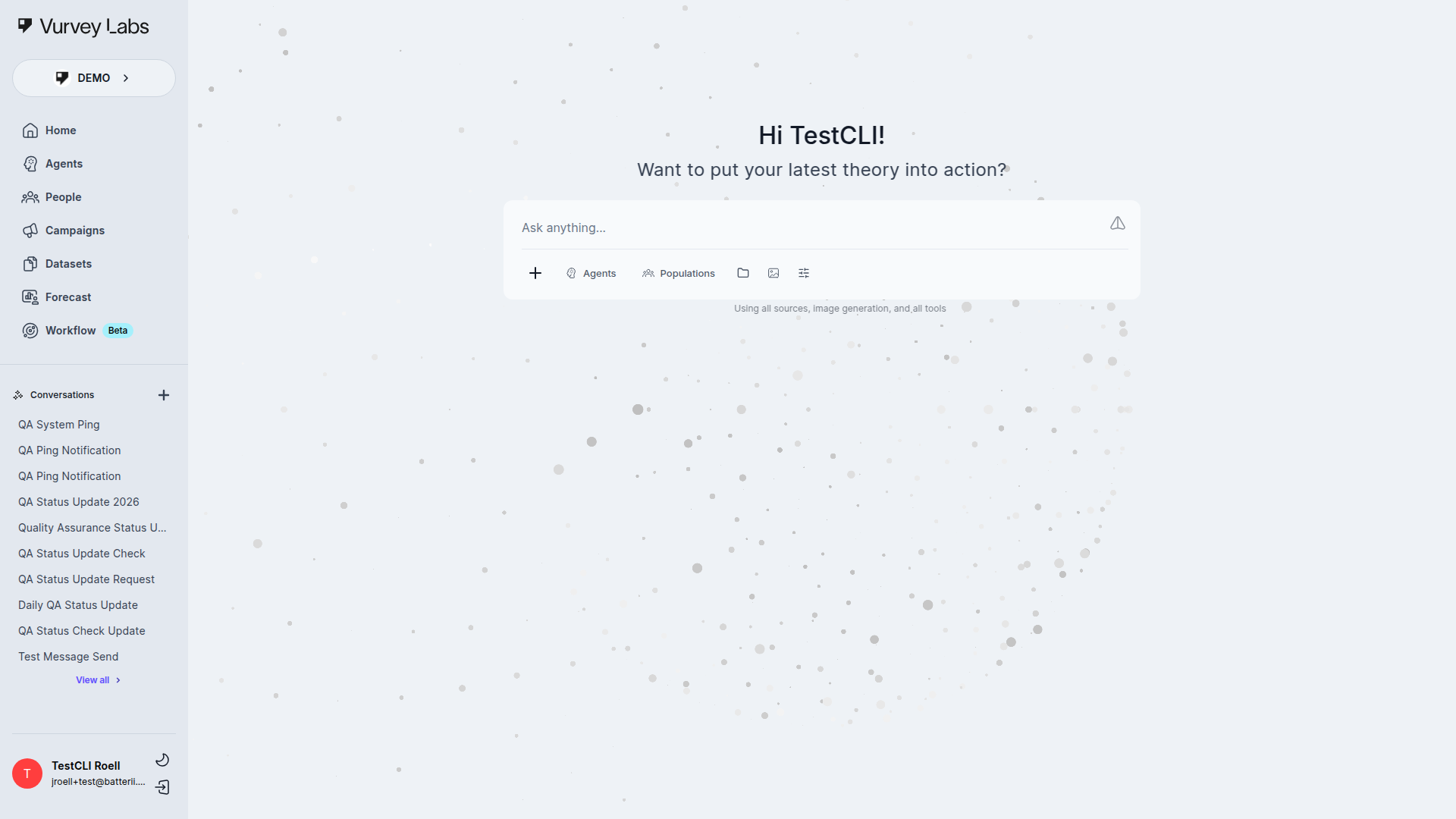
Your conversations are saved automatically and listed in the left sidebar under Conversations.
- Start a new conversation — Click the + button next to the Conversations header
- Continue a conversation — Click any conversation in the list to pick up where you left off
- View all conversations — Click View all at the bottom of the list to browse your full history
- Manage a conversation — Right-click (or use the menu on) any conversation to rename, export, or delete it
When to Start Fresh
Start a new conversation when you're switching to a completely different topic. Keeping conversations focused helps the AI give more relevant, contextual responses.
Renaming Conversations
Conversations are auto-named based on your first message. To rename one:
- Right-click the conversation in the sidebar (or click the three-dot menu)
- Select Rename
- Enter a descriptive name in the Rename conversation modal and save it
Good naming habits make it easy to find past research when you need it later.
Exporting Conversations
To save a conversation outside of Vurvey:
- Right-click the conversation and select Export
- In the export modal, choose how many recent messages to include: 10, 20, 50, or 100
- Choose a file type: Markdown (.md), PDF (.pdf), or DOCX (.docx)
- The download starts automatically
Deleting from this same conversation menu opens a confirmation step before the conversation is removed.
Exported conversations are great for sharing with team members who may not have Vurvey access, or for archiving completed research projects.
Searching Past Conversations
Use the search field at the top of the conversation sidebar to find past conversations by keyword. The search looks through conversation titles, so descriptive names help you find things quickly.
Organizing Your Research
Develop a naming convention for your conversations. For example: "[Project] - [Topic] - [Date]" like "Spring Launch - Consumer Sentiment - Jan 2026". This makes it easy to filter and find related conversations later.
Multi-Agent Conversations
One of Vurvey's most powerful features is using different AI agents within the same conversation over multiple turns. This lets you simulate focus groups, get diverse perspectives, and challenge assumptions while keeping a single conversation thread.
One Request, One Response
In chat, each user message receives one agent response. Mention only one @AgentName per message.
@Mention Syntax
To bring an agent into your conversation, type @ followed by their name. The agent selector dropdown will appear as you type, showing matching agents.
Syntax examples:
@MarketAnalyst— Mentions a single agent@BrandStrategist, based on the previous response, what positioning do you recommend?— Handoff to a different agent on your next turn@TargetConsumer, react to the summary above in your own words.— Continue the same conversation with another agent
Multi-Agent Patterns
Virtual Focus Group
Simulate a consumer focus group by asking the same prompt to multiple persona agents in separate turns:
- "@MillennialMom — Here's our new packaging design. What's your first impression? Would you pick this up in a store?"
- "@GenZShopper — Same question: what's your first impression of this packaging?"
- "@LuxuryBuyer — How does this packaging affect perceived quality?"
- "@BudgetShopper — Does this feel worth the price point?"
Each message gets one response, but across a few turns you'll collect a full range of perspectives.
Expert Handoff
Use two agents with different expertise in sequence:
- "@MarketAnalyst, what does our data say about the premium pricing opportunity?"
- "@BrandStrategist, do you agree with the analyst's assessment above given current market conditions?"
The second agent can reference and build on (or challenge) the first agent's response.
Moderator Pattern
Use one agent as a moderator to synthesize multiple perspectives:
- First, get individual responses in separate messages:
- "@PersonaA — What matters most to you when choosing a shampoo brand?"
- "@PersonaB — What matters most to you when choosing a shampoo brand?"
- "@PersonaC — What matters most to you when choosing a shampoo brand?"
- Then summarize: "@MarketAnalyst, synthesize these three perspectives. Where do they agree and disagree?"
Iterative Refinement
Use agents in sequence to refine an idea:
- "@CreativeDirector, draft three tagline concepts for our new product"
- "@BrandStrategist, evaluate these taglines against our brand guidelines"
- "@TargetConsumer, which of these taglines resonates with you and why?"
Multi-Agent Best Practices
- Use one
@AgentNameper message so routing is predictable - Ask each agent a specific question rather than a vague request
- Reference previous responses to create a flowing dialogue between agents
- Use a summarizer agent at the end to consolidate insights from the group
Practical Examples
Rapid Survey Analysis
You just closed a survey with 500 responses and need insights for a meeting in two hours.
- Click Sources and select your survey campaign
- Ask: "What are the top 5 themes in these survey responses?"
- Follow up: "Show me notable quotes that represent each theme"
- Then: "Write a 3-paragraph executive summary I can present to leadership"
Competitive Intelligence
Your team needs to understand how competitors are positioning themselves.
- Click the Tools button and select Web Research to enable web search
- Ask: "What is [Competitor]'s current messaging in the skincare market?"
- Follow up: "Compare their positioning to ours based on our latest brand study" (with your brand study selected as a Source)
Multi-Perspective Concept Testing
You have a new product concept and want diverse reactions before live consumer testing.
- Upload your concept image or description
- Ask: "@MillennialMom, would this product appeal to you?"
- Ask: "@BudgetShopper, is the value clear?"
- Ask: "@TrendSetter, would you share this with friends?"
- Then: "@MarketAnalyst, based on all responses above, what are the strongest selling points and biggest purchase barriers?"
Product Concept Deep Dive
You're developing a new product line and want to pressure-test the concept before investing in prototypes.
- Upload your concept images, mood board, or product description
- Click Sources and select any existing consumer research relevant to this category
- Ask: "Based on our consumer research, how does this concept align with the needs and preferences of our target audience?"
- Follow up: "What are the top 3 risks and top 3 opportunities for this concept?"
- Then: "Draft a one-page concept summary I can share with our product development team, including recommended next steps"
Weekly Research Digest
Your team needs a consolidated view of insights across multiple ongoing research projects.
- Click Sources and select 3–4 recent campaigns
- Ask: "Give me a consolidated summary of the key findings across all these campaigns from the past week"
- Follow up: "What are the recurring themes that appear across multiple studies?"
- Then: "Format this as a weekly research digest with bullet points, organized by theme"
Weekly Digest Automation
If you create a weekly digest regularly, save your source selections and prompt structure. Start each week's conversation with the same approach to maintain consistency across reports.
Cross-Campaign Comparison
You've run similar surveys at different times and want to understand how consumer sentiment has shifted.
- Click Sources and select both campaigns (e.g., Q1 and Q3 brand trackers)
- Ask: "Compare the results of these two campaigns. What has changed in consumer sentiment between them?"
- Follow up: "Which specific metrics improved or declined the most?"
- Then: "Create a comparison table showing the key differences side by side"
Brand Health Monitoring
Your brand team needs a regular pulse check on brand perception.
- Click Sources and select your brand tracking campaign data
- Enable the Tools button to supplement with market data
- Ask: "Based on our brand tracking data, what is the current state of our brand health? Include aided awareness, favorability, and purchase intent if available"
- Follow up: "How do these metrics compare to industry benchmarks?" (the AI will use web search for benchmarks)
- Then: "What are the 3 most actionable recommendations to improve our weakest brand metrics?"
Ad Creative Testing
You have multiple ad concepts and want quick feedback before committing budget.
- Upload your ad mockups (images or PDFs)
- Ask: "@TargetConsumer, look at these three ad concepts. Which one grabs your attention first and why?"
- Follow up: "@MarketAnalyst, based on advertising best practices, which concept has the strongest call-to-action and visual hierarchy?"
- Then: "Create a scorecard comparing all three concepts across memorability, clarity, emotional appeal, and brand fit"
Customer Journey Mapping
Combine multiple data sources to build a comprehensive understanding of the customer experience.
- Click Sources and select your purchase experience survey, customer satisfaction data, and any uploaded customer feedback files
- Ask: "Map out the key stages of our customer journey based on this data. What are customers experiencing at each stage?"
- Follow up: "Where are the biggest pain points and moments of delight?"
- Then: "Prioritize the top 3 pain points by severity and frequency, and suggest improvements for each"
Advanced Chat Techniques
Prompt Engineering for Market Research
The way you phrase your questions significantly affects the quality of the AI's responses. Here are proven techniques for market researchers:
Be Specific About Output Format
Instead of open-ended questions, specify exactly what you need:
| Instead of... | Try... |
|---|---|
| "Analyze this data" | "Create a table of the top 5 themes with frequency counts and representative quotes" |
| "What do consumers think?" | "Summarize consumer sentiment in 3 bullet points: positive, negative, and neutral, with percentages" |
| "Tell me about trends" | "Identify 3 emerging trends, explain each in 2 sentences, and rate their potential impact as high/medium/low" |
Chain-of-Thought Prompting
For complex analysis, guide the AI through your reasoning step by step:
"First, identify the key demographic segments in this survey data. Then, for each segment, summarize their top concerns. Finally, compare segments and highlight where they agree and disagree."
This produces more thorough analysis than asking "What do different demographics think?"
Comparison Prompting
When you need the AI to compare two things, provide a framework:
"Compare Product A and Product B across these dimensions: price perception, quality perception, brand trust, and purchase intent. Present the results in a table with a winner for each dimension."
Role-Based Prompting
Tell the AI what perspective to take:
"As a brand strategist presenting to the CMO, summarize these findings in a way that emphasizes business implications and recommended actions."
Template Prompts for Common Tasks
Copy and customize these templates for recurring research tasks:
Executive Summary:
"Write a 3-paragraph executive summary of [campaign/data]. Paragraph 1: key findings. Paragraph 2: implications for our business. Paragraph 3: recommended next steps."
Theme Analysis:
"Identify the top [N] themes in these responses. For each theme, provide: a descriptive name, the approximate percentage of responses mentioning it, 2–3 representative quotes, and one actionable insight."
Competitive Brief:
"Based on [sources], create a competitive brief covering: market positioning, key messaging, target audience, strengths, and vulnerabilities for [competitor name]."
Research Debrief:
"Create a research debrief for [campaign]. Include: objectives, methodology, sample size, key findings (top 5), surprises or unexpected results, and recommendations."
Using Shift + Enter for Complex Prompts
Press Shift + Enter to add new lines within your message without sending it. This is useful for:
- Multi-part questions with numbered steps
- Including context before your question
- Structuring complex requests with clear sections
Example multi-line prompt:
Context: We launched a new skincare line in March targeting Gen Z consumers.
Data: I've connected our post-launch survey (n=1,200) and our pre-launch baseline study.
Questions:1. How does post-launch brand awareness compare to our pre-launch baseline?2. Which product in the line has the highest purchase intent?3. What are the top 3 barriers to trial among those aware but not yet purchasing?
Tips for Better Results
- Be specific — Instead of "analyze this data," try "identify the top 3 themes with supporting quotes for each"
- Build on previous answers — Follow up with "tell me more about the second theme" or "break that down by age group"
- Set the format — Ask for bullet points, an executive summary, a comparison table, or whatever format you need
- Use Shift + Enter for multi-line prompts when you have a complex request with several parts
- Start with your goal — Lead with what you need the output for: "For a client presentation, summarize..." or "For an internal Slack update, give me..."
- Ask for revisions — If a response is close but not quite right, ask the AI to adjust: "Make this more concise," "Add more data points," or "Rewrite this for a non-technical audience"
- Save good prompts — When you find a prompt structure that works well, save it for reuse. Consistency in prompting leads to consistency in output quality.
Troubleshooting
Responses seem generic and don't reference your data? Make sure you've selected specific sources using the Sources button. Without sources connected, the AI uses only its general knowledge.
Can't send a message? Check that your text input isn't empty, or wait for the current response to finish before sending another message.
Response is slow? Try reducing the number of connected sources, or break a complex question into simpler follow-up questions.
Response seems to ignore your selected sources? This usually happens when your question is too broad. Try asking about specific topics within your data — for example, instead of "tell me about this campaign," ask "what did respondents aged 25–34 say about price sensitivity in this campaign?"
The AI is making claims that aren't in your data? When sources are connected, the AI should cite your data. If it's generating information not found in your sources, try rephrasing your question to explicitly ask it to "only use the connected sources" or "cite every claim." You can also check the Citations panel to verify which claims are supported.
Images won't upload? Check the file format (PNG, JPG, GIF, or WEBP) and size (under 20 MB). If the file is too large, reduce the resolution or compress it before uploading. Also ensure you have a stable internet connection — large uploads may fail on slow connections.
Response is cut off or seems incomplete? Occasionally, very long responses may stop before they're finished. Simply type "continue" or "please finish your response" and the AI will pick up where it left off. For very long analyses, consider breaking your request into smaller parts.
Agent isn't behaving as expected in chat? Make sure you've selected the correct agent using the Agents button or the correct @mention name. If the agent's responses don't match their configured personality, they may be influenced by the conversation context. Try starting a new conversation with a fresh prompt.
Search results seem outdated or irrelevant? Web search results depend on what's publicly available. Try rephrasing your search query to be more specific — include dates, brand names, or specific topics. For the most current information, include the current year or "latest" in your question. For platform-specific results, select a specific social media tool instead of using general Web Research.
Can't find a previous conversation? Check the conversation sidebar and use the search field to filter by keyword. If you still can't find it, click View all to browse your complete history. Conversations are listed by most recent activity, so scroll down for older ones.
Cross-agent responses feel inconsistent? Use one @mention per message and ask each agent in separate turns. Then ask one agent to synthesize: "@MarketAnalyst, summarize the key points from everyone's responses above and identify where they agree."
Known Limitations
- The AI may occasionally paraphrase rather than directly quote your data. Always check citations for exact wording.
- Very large datasets (thousands of pages) may result in the AI focusing on the most relevant sections rather than covering everything.
- Image generation results vary — you may need 2–3 attempts to get the visual you're looking for.
Keyboard Shortcuts
| Shortcut | Action |
|---|---|
| Enter | Send your message |
| Shift + Enter | Add a new line without sending |
| @ + agent name | Mention an agent in your message |
Next Steps
- Create custom Agents tailored to your research needs
- Upload Datasets to give agents your proprietary knowledge
- Launch a Campaign to collect primary research data
- Build Workflows to automate recurring analysis