
Datasets
Datasets are your AI's knowledge base. Upload research reports, survey exports, competitive analysis documents, and other files so your AI agents can search, reference, and cite that information during conversations and workflows.
Overview
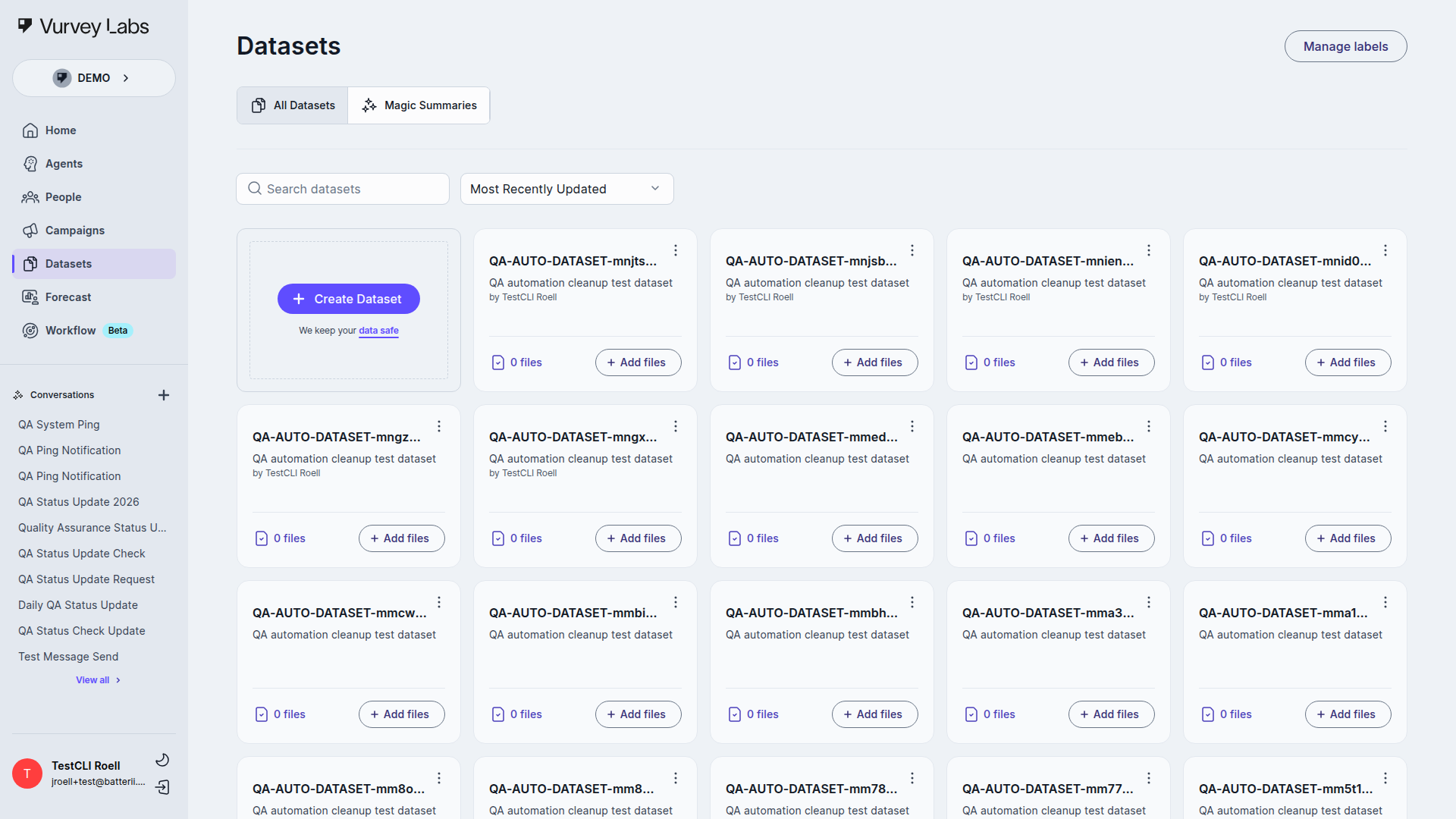
The Datasets page displays all your datasets in a card-based gallery. Each card shows the dataset name, a brief description, the creator, and the total number of files inside.
Why Use Datasets?
Think of datasets as giving your AI agents specialized expertise. When you connect a dataset to an agent or conversation, the AI can draw on everything you've uploaded — product specs, brand tracking reports, interview transcripts, competitive intelligence — to give you more informed, accurate answers.
Navigation
Access Datasets from the main sidebar. The section includes two tabs:
| Tab / Control | Description |
|---|---|
| All Datasets | Gallery view of all datasets |
| Magic Summaries | Secondary page currently marked as coming soon |
| Manage labels | Admin-level control shown in the header for users with access |
Browsing Your Datasets
Datasets appear as cards in a responsive grid. Each card shows:
- Name — the dataset title
- Description — a summary of what the dataset contains
- Creator — who created it ("by Jane Smith")
- File count — total documents, images, videos, and audio files
- Add Files button for quick uploads (if you have edit access)
Use the Search bar above the grid to find datasets by name, and the Sort By dropdown to change the display order.
Empty State — No Datasets Yet
Even when your workspace has no datasets yet, the current list view still injects a Create Dataset card into the grid. Older docs that say there is no create action in the gallery are outdated.
Organize for Easy Discovery
Create focused datasets rather than one catch-all collection:
- "Q4-2026-Brand-Tracking" instead of "All Research"
- "Competitor-Analysis-Beauty" instead of "Competitive Intel"
- "Product-A-Launch-Study" instead of "Studies"
Creating a Dataset
To create your first dataset, use the Create Dataset action from the grid or page header.
Click Create Dataset to open the creation dialog.

Fill in two fields:
| Field | Description | Limit |
|---|---|---|
| Name | A short identifier for the dataset. Spaces are automatically replaced with dashes. | 35 characters |
| Description | A brief note about the dataset's purpose or contents. | 255 characters |
Click Create to finish. You'll be taken straight to the new dataset's detail page where you can start uploading files.
Dataset Card Actions
Hover over any dataset card and click the three-dot menu (⋯) for quick actions:
| Action | What It Does |
|---|---|
| Start Conversation | Open a chat using this dataset as context when the dataset is not empty |
| Share | Control who can access this dataset |
| Edit | Change the dataset name or description (requires edit permission) |
| Delete | Remove the dataset (requires delete permission; only available when the dataset is empty, and the current flow uses a confirmation modal) |
Permissions
The actions you see depend on your access level. Some options may not appear if you don't have the required permission.
Working Inside a Dataset
Click any dataset card to open its detail page.
Header
The detail page header shows the dataset name and description, along with sharing and conversation actions when your permissions allow them.
Stats Panel
When files or videos are present, a stats panel summarizes the current processing state:
| Metric | What It Means |
|---|---|
| Total Files | Files and videos tracked by the current processing summary |
| Processed | Files and videos the AI has finished analyzing and can now reference |
| Processing | Files and videos currently being analyzed (status refreshes automatically) |
| Failed | Files and videos that encountered an error — click the retry icon to reprocess |
| Uploaded | Files and videos waiting in the queue to be processed |
Current Scope Note
Audio uploads can still live inside a dataset, but the current summary widgets and the detail-page Start Conversation readiness check are built around files and videos.
Keep an Eye on Processing
After uploading, check the stats panel:
- All Processed — your files are ready for AI use.
- Processing — the system is still working; status updates every 30 seconds.
- Failed — click retry next to the file to reprocess it.
Action Buttons
| Button | Description |
|---|---|
| Add Files | Upload new files from your computer or Google Drive |
| Share | Manage who can view or edit this dataset (requires manage permissions) |
| Start Conversation | Begin an AI chat that can reference everything in this dataset |
Processing Must Complete First
The detail-page Start Conversation button stays disabled until all files and videos have been processed successfully, and the dataset has at least one file or video. The tooltip explains this state directly in the UI.
Current Dialogs and Menus
| Surface | Current behavior |
|---|---|
| Create Dataset | Opens the dataset-creation dialog for name and description |
| Add Files | Opens a dropdown with Upload and Add via Google Drive |
| Upload Files | Shared UploadFilesModal used for picking, reviewing, and removing files before they are saved |
| File row menu | Contextual menu with Conversation, Edit Labels, and Delete |
| Manage Labels | Modal used for single-file and bulk label edits |
| Replace Existing Labels | Warning modal shown when a bulk label action would overwrite existing values |
| Share | Permissions dialog using Viewer and Editor roles |
| Delete | File deletion and dataset deletion both use confirmation dialogs |
Uploading Files
Click Add Files to open the current dropdown trigger. From there you can choose local upload or Google Drive import. Local upload uses the shared Upload Files modal.
| Option | Description |
|---|---|
| Upload | Select files from your computer |
| Add via Google Drive | Import files directly from Google Drive |
Supported File Types
| Category | Accepted Formats |
|---|---|
| Documents | PDF, DOC, DOCX, TXT, JSON |
| Spreadsheets | CSV, XLS, XLSX |
| Presentations | PPTX |
| Images | PNG, JPG, JPEG, GIF, WEBP |
| Video | MP4, MOV, AVI |
| Audio | MP3, WAV, OGG, AAC, M4A, WEBM, FLAC (when audio uploads are enabled for your workspace) |
Choosing the Right Format
- PDFs are ideal for formatted reports and presentations.
- CSV or JSON work well for structured data the AI can analyze row by row.
- Videos and audio are automatically transcribed so the AI can search spoken content.
File Type Best Practices
Different formats have different strengths. Choosing the right one can significantly improve how well the AI understands and uses your content.
| Format | Best For | Tips |
|---|---|---|
| Polished reports, branded documents, multi-page research with charts | Use text-based PDFs, not scanned images. If you must scan, make sure OCR is enabled. | |
| DOCX | Working documents, interview guides, internal memos | Preserves document structure well. Headings and bullet points help the AI understand hierarchy. |
| CSV | Survey exports, CRM data, any tabular data | Include clear column headers. Keep one data type per column. Remove merged cells before upload. |
| XLSX | Multi-sheet workbooks, data with formatting context | Name your sheets descriptively. The AI can read multiple sheets but processes each independently. |
| TXT / MD | Raw transcripts, notes, simple text content | Good for quick uploads when formatting doesn't matter. Markdown headings help organize long documents. |
| JSON | API exports, structured data from tools | Works well for nested data structures. The AI handles JSON natively. |
| PPTX | Slide decks, presentations | The AI reads slide text and notes. Images within slides are also analyzed. |
| PNG / JPG | Screenshots, infographics, product images | The AI describes visual content and can answer questions about what's shown. High resolution gives better results. |
| MP4 / MOV | Interview recordings, focus group videos, product demos | Automatically transcribed. Shorter clips (under 30 minutes) process faster and more accurately. |
| MP3 / WAV | Audio interviews, podcast clips, meeting recordings | Automatically transcribed. Clear audio with minimal background noise gives the best results. |
When to Use CSV vs. XLSX
- Use CSV when you have clean, flat tabular data (survey exports, contact lists, simple metrics). CSVs process faster and are less error-prone.
- Use XLSX when you need to preserve multiple sheets, formulas context, or have complex headers. Be aware that heavy formatting may not translate.
- General rule: If you can export as CSV, prefer CSV. If you need the spreadsheet structure, use XLSX.
When to Use PDF vs. DOCX
- Use PDF for final reports you won't edit again — especially if they contain charts or visual layouts.
- Use DOCX for working documents you may update later. DOCX files also tend to produce slightly better text extraction than PDFs in some cases.
How Uploading Works
- Select your files using the file picker or Google Drive browser.
- The current upload modal accepts up to 10 files in one upload session.
- A progress notification keeps you informed.
- Once uploaded, files enter the processing queue.
- Status updates automatically every 30 seconds.
- You'll see a notification when processing is complete.
Large Uploads
For best results with many files, upload in batches of about 10 and wait for processing to finish before uploading more.
Google Drive Import
When you choose Add via Google Drive:
- Authenticate with your Google account (one-time setup).
- Browse and select the files you want.
- Files are copied into Vurvey — they aren't linked, so future changes in Drive won't sync automatically.
Google Drive Import: Step-by-Step Walkthrough
If this is your first time importing from Google Drive, here's a detailed walkthrough:
Step 1: Connect Your Google Account
- Click Add Files on your dataset detail page.
- Select Add via Google Drive.
- A Google authentication window opens — sign in with the Google account that has access to your files.
- Grant Vurvey permission to view your Drive files. Vurvey only reads the files you select; it does not modify anything in your Drive.
Google Workspace Users
If your organization uses Google Workspace, you may need your IT administrator to approve the Vurvey integration before you can connect. Check with your admin if you see an "access blocked" message.
Step 2: Browse and Select Files
- Once authenticated, a file browser opens showing your Google Drive contents.
- Navigate through folders to find the files you need.
- Select one or multiple files by clicking on them.
- You can select files from different folders — use the breadcrumb navigation to move between directories.
Step 3: Import and Process
- Click Import (or Select) to bring the files into Vurvey.
- Files are copied into your dataset — this creates a snapshot. If you later update the file in Google Drive, the Vurvey copy stays as it was at import time.
- Imported files enter the same processing queue as direct uploads.
- Monitor progress in the stats panel.
Google Drive Permissions
- You can only import files you have at least View access to in Google Drive.
- Shared Drive (Team Drive) files work as long as you have access.
- If a file fails to import, double-check that sharing permissions haven't changed.
- Large files from Google Drive may take a moment to transfer before processing begins.
Step 4: Verify Your Import
After importing, check the file table to confirm:
- All expected files appear in the list.
- File names match what you selected.
- Processing status shows "Uploaded" or "Processing" (not "Failed").
File Processing
After upload, each file goes through AI processing. You'll see a status badge next to every file:
| Status | Meaning |
|---|---|
| Uploaded | Received and waiting in the queue |
| Processing | The AI is analyzing this file |
| Success | Ready to use in conversations and workflows |
| Failed | Something went wrong — click the retry icon to try again |
Typical Processing Times
| File Type | Size Range | Estimated Time |
|---|---|---|
| Text documents (TXT, MD) | Under 1 MB | Under 1 minute |
| Documents (PDF, DOCX) | Under 5 MB | 1–3 minutes |
| Documents (PDF, DOCX) | 5–25 MB | 3–8 minutes |
| Documents (PDF, DOCX) | 25–50 MB | 8–15 minutes |
| Spreadsheets (CSV) | Under 5 MB | 1–3 minutes |
| Spreadsheets (CSV) | 5–20 MB | 3–10 minutes |
| Spreadsheets (XLSX) | Under 10 MB | 2–5 minutes |
| Spreadsheets (XLSX) | 10–30 MB | 5–12 minutes |
| Presentations (PPTX) | Under 20 MB | 2–8 minutes |
| Images (PNG, JPG, GIF, WEBP) | Under 10 MB | 1–3 minutes |
| Audio (MP3, WAV) | Under 10 minutes of audio | 2–5 minutes |
| Audio (MP3, WAV) | 10–60 minutes of audio | 5–15 minutes |
| Video (MP4, MOV) | Under 5 minutes of video | 3–10 minutes |
| Video (MP4, MOV) | 5–30 minutes of video | 10–30 minutes |
| Video (MP4, MOV) | 30–60 minutes of video | 25–45 minutes |
Processing Time Factors
Processing time depends on more than just file size:
- Text density — A 2 MB PDF with dense text takes longer than a 5 MB PDF with mostly images.
- Audio/video quality — Clear audio transcribes faster; noisy recordings need extra processing.
- Queue depth — If many files are processing simultaneously, each one may take slightly longer.
- File complexity — Spreadsheets with thousands of rows or documents with complex layouts take more time.
The page polls for updates every 30 seconds and shows a notification when everything is ready.
Managing Files
File Table
The detail page lists all files in a sortable table with columns for Name, Type, Status, Labels, and a row-level action menu.
Use the Search bar to find files by name, or use the media criteria panel to filter by label, file type, and processing status.
Bulk Actions
Select multiple files using the checkboxes, then use the toolbar to:
- Add Label — apply labels to all selected files at once
- Delete — remove the selected files (requires delete permission)
Row Actions
Click the three-dot menu (⋯) on any file row for:
| Action | What It Does |
|---|---|
| Conversation | Start a chat with this specific file as context (file must be processed) |
| Edit Labels | Add or change labels on this file |
| Delete | Remove the file from the dataset after a confirmation step |
Labels
Labels help you organize files within a dataset using simple key: value pairs. For example:
category: skincare
region: north-america
quarter: Q4-2026
source: focus-group
status: reviewed
Adding Labels
- Click Edit Labels on a file, or select multiple files and click Add Label.
- Enter key-value pairs (one per row).
- Save your changes.
Bulk label changes use the same Manage Labels modal. If the change would replace existing values, the UI shows a separate warning modal before it commits the update.
How Labels Display
Files show up to two labels on the card. If there are more, you'll see a +N more indicator — click it to see all labels.
Labels Improve AI Retrieval
Well-organized labels help the AI narrow its search when answering questions. Use consistent keys across your files:
- product: for product lines
- quarter: for time periods
- type: for content categories (interview, survey, report)
- source: for where the content came from
Bulk Label Warning
When applying labels to files that already have labels, you'll be asked whether to replace the existing ones. This prevents accidentally overwriting metadata.
Label Strategy Examples
Here are complete labeling schemes for common research scenarios. Use these as starting points and adapt to your team's terminology.
Example 1: Beauty Brand Research
product-line: skincare | haircare | makeup | fragrance
study-type: concept-test | usage-attitudes | brand-tracking | claims-test
quarter: Q1-2026 | Q2-2026 | Q3-2026 | Q4-2026
region: north-america | europe | asia-pacific | latin-america
source: online-survey | focus-group | in-depth-interview | social-listening
status: draft | reviewed | final
How to use it: When your agent asks questions about skincare concept tests from Q1, the labels let the AI zero in on exactly the right files instead of searching your entire dataset.
Example 2: CPG Category Management
category: beverages | snacks | personal-care | household | frozen-foods
data-source: nielsen | iri | internal-survey | social-listening | retailer-pos
time-period: weekly | monthly | quarterly | annual
channel: grocery | mass | convenience | online | club
brand: own-brand | competitor-a | competitor-b | private-label
How to use it: Ask your agent "Show me quarterly Nielsen trends for beverages in the grocery channel" and the labels help surface the most relevant data files.
Example 3: Competitive Intelligence
competitor: competitor-a | competitor-b | competitor-c | competitor-d
intel-type: pricing | messaging | product-launch | campaign | partnership
confidence: confirmed | rumored | speculative
date-collected: 2026-01 | 2026-02 | 2026-03
source: press-release | website | social-media | industry-report | field-observation
How to use it: Track the freshness and reliability of your competitive intel. When the AI cites a source, you can quickly tell whether it's confirmed intelligence or a rumor.
Example 4: Multi-Market Consumer Research
market: us | uk | germany | france | japan | brazil
language: english | german | french | japanese | portuguese
methodology: quant-survey | qual-interview | ethnography | diary-study
wave: wave-1 | wave-2 | wave-3 | pre-launch | post-launch
segment: gen-z | millennials | gen-x | boomers | all-ages
How to use it: Run cross-market comparisons by asking agents to analyze differences between segments or markets — the labels make it easy to pull the right files for each comparison.
Label Naming Conventions
- Use lowercase and hyphens for consistency (e.g., "north-america" not "North America").
- Keep key names short but descriptive — "source" is better than "data-collection-source-type."
- Agree on a standard set of labels with your team before you start uploading.
- Document your label scheme somewhere your team can reference it (a shared doc or wiki page).
Dataset Organization Patterns
How you organize your datasets depends on your research workflow. Here are four proven patterns:
Pattern 1: By Project
Create one dataset per research project or initiative.
| Dataset Name | Contents |
|---|---|
| Holiday-Campaign-2026 | All research files related to the 2026 holiday campaign |
| Product-A-Relaunch | Consumer testing, competitive analysis, and concept boards for the relaunch |
| Brand-Health-Tracker | Ongoing brand tracking survey data and reports |
Best for: Teams that work on distinct projects with clear start and end dates.
Pattern 2: By Quarter
Organize research chronologically for easy time-based comparisons.
| Dataset Name | Contents |
|---|---|
| Q1-2026-Research | All research completed in January–March 2026 |
| Q2-2026-Research | All research completed in April–June 2026 |
| Q3-2026-Research | All research completed in July–September 2026 |
Best for: Teams that need to track trends over time or compare insights across periods.
Pattern 3: By Topic
Group files by subject matter regardless of when they were created.
| Dataset Name | Contents |
|---|---|
| Sustainability-Consumer-Attitudes | All research on sustainability perceptions and green purchasing |
| Pricing-Sensitivity-Research | Price testing, willingness-to-pay studies, value perception data |
| Packaging-Design-Insights | Package testing results, shelf impact studies, design preference data |
Best for: Teams that need a long-running knowledge base on specific topics.
Pattern 4: By Competitor
Dedicate a dataset to each competitor for focused competitive intelligence.
| Dataset Name | Contents |
|---|---|
| Competitor-A-Intel | Press releases, product info, ad creative, pricing data |
| Competitor-B-Intel | Campaign analysis, social listening exports, market share data |
| Market-Landscape-2026 | Industry reports and category-level data that spans competitors |
Best for: Teams running ongoing competitive monitoring programs.
Combine Patterns
Most teams use a mix. For example, you might organize by project for active work and by topic for your long-term knowledge base. The key is consistency within your team.
Sharing and Permissions
The current share dialog for datasets uses General Access plus person-level Viewer and Editor roles.
| Role | What It Allows |
|---|---|
| Viewer | Open the dataset, inspect its contents, and use it where read access is supported |
| Editor | Upload files, edit labels, and modify dataset details |
How to Share
- Click Share on the dataset card or detail page.
- Use the General Access dropdown to choose Restricted access or Wide access.
- If you turn on Wide access, choose the workspace-wide Viewer or Editor level from the secondary selector.
- Use Add people to invite specific teammates, then choose Viewer or Editor for each invite.
- Review any per-member restrictions shown by the dialog tooltips and save your changes.
Real-World Use Cases
Research Knowledge Base
Scenario: Your team conducts ongoing consumer research and needs quick access to past findings.
How to set it up:
- Create datasets organized by project or quarter — e.g., "Q4-2026-Product-Research."
- Upload survey exports, interview transcripts, and summary reports.
- Label files by topic, segment, and date.
- Connect the dataset to an analysis-focused agent, then ask questions like:
- "What are the top pricing concerns from our Q4 research?"
- "Summarize the key differences between Gen Z and Millennial respondents."
- "Find all mentions of competitor X across our studies."
Competitive Intelligence Hub
Scenario: You want AI to help you track and analyze competitive positioning.
How to set it up:
- Create a dataset per competitor — e.g., "Competitor-A-Intel."
- Upload competitor press releases, website content, ad screenshots, and product specs.
- Label files by source and date for freshness tracking.
- Ask your agent questions like:
- "How does Competitor A position their sustainability story?"
- "What pricing strategies are competitors using this quarter?"
- "Have there been any notable product launches in the last six months?"
Meeting and Interview Archive
Scenario: You want AI to recall key moments from meetings and consumer interviews.
How to set it up:
- Upload meeting recordings or interview audio/video files.
- Vurvey automatically transcribes and indexes the spoken content.
- Label by date, participants, and topic.
- Search across conversations with questions like:
- "What did the client say about the timeline in our last meeting?"
- "Find all action items from the Q4 planning sessions."
Multi-Source Market Analysis
Scenario: Combine industry reports, survey data, and social listening exports into one knowledge base for comprehensive market understanding.
How to set it up:
- Create a "Market-Analysis-2026" dataset.
- Upload industry reports, internal survey data, and social listening exports.
- Label by source and topic.
- Query for market trends:
- "What are the emerging trends in our category?"
- "What gaps exist between customer expectations and our current offerings?"
Best Practices
Organizing Datasets
- Use clear, descriptive names that indicate the dataset's purpose.
- Write helpful descriptions so teammates know what's inside.
- Group related files together — keep datasets focused rather than mixing unrelated content.
- Aim for 50–200 files per dataset for the best AI performance.
File Quality
- Make sure documents are text-searchable (use OCR for scanned PDFs).
- Use clear audio without heavy background noise for the best transcription results.
- Remove duplicate or outdated files to keep AI answers accurate.
Label Strategy
- Pick standard label keys your whole team uses (e.g., "category," "region," "quarter").
- Be consistent with values — avoid using both "US" and "United States."
- Label files right after uploading so nothing gets missed.
Dataset Size Guidelines
| Dataset Size | AI Performance | Recommendation |
|---|---|---|
| 1–50 files | Excellent — fast retrieval, highly focused answers | Great for focused project datasets |
| 50–200 files | Very good — broad knowledge with good precision | Ideal range for most use cases |
| 200–500 files | Good — may occasionally surface less relevant results | Consider splitting into sub-topics if answers lose focus |
| 500+ files | Adequate — slower retrieval, answers may be less precise | Split into multiple focused datasets and use labels heavily |
Data Security
- All data is encrypted at rest and in transit.
- Datasets are isolated to your workspace — other organizations cannot access your files.
- Permission-based access control ensures only authorized team members can view or edit.
Privacy Reminder
Make sure any data you upload complies with your organization's data policies and relevant regulations (GDPR, CCPA, etc.).
Troubleshooting
Upload Failed
- Verify the file format is in the supported types list above.
- Check file size limits — PDF/DOC/DOCX/PPTX up to 50 MB, TXT/JSON up to 10 MB, spreadsheets (CSV/XLS/XLSX) up to 25 MB, videos up to 100 MB, audio up to 25 MB, images up to 10 MB.
- Try uploading the file again.
- If a large file keeps failing, try splitting it into smaller parts.
Processing Stuck
- Wait for automatic polling — the page checks every 30 seconds.
- Try refreshing the page manually.
- If stuck for more than 30 minutes, click the retry icon next to the file.
- Contact support if the problem persists.
AI Not Finding Content
- Make sure the file status is Success (not Processing or Failed).
- Confirm you've connected the correct dataset to your conversation.
- Check that the content is text-searchable (scanned image-only PDFs may not work).
- Try rephrasing your question using terms that appear in the files.
File Upload Timing Out
- Check your internet connection — large uploads need a stable connection.
- Try a smaller batch (5–10 files instead of 20).
- If uploading a very large file (over 30 MB), try during off-peak hours when network congestion is lower.
- Switch to a wired connection if you're on Wi-Fi and experiencing intermittent drops.
- If the timeout persists, split the file into smaller parts (e.g., split a 100-page PDF into two 50-page files).
Large CSV Not Processing Correctly
- Check that your CSV uses UTF-8 encoding — other encodings can cause garbled characters.
- Ensure column headers are on the first row with no merged cells.
- Remove any blank rows at the top or bottom of the file.
- Check for special characters in header names — stick to letters, numbers, and hyphens.
- If the file is very large (over 10 MB or 100,000+ rows), consider splitting it into smaller chunks. Processing is more reliable with files under 50,000 rows.
- Open the file in a text editor to verify there are no hidden formatting issues from Excel.
Google Drive Permission Errors
- Confirm you are signed into the correct Google account.
- Check that you have at least View access to the files in Google Drive.
- If your organization uses Google Workspace, ask your IT administrator to approve the Vurvey integration.
- Try disconnecting and reconnecting your Google account: log out of the Google picker, then re-authenticate.
- If importing from a Shared Drive, verify that your Shared Drive permissions haven't changed recently.
Files Showing Wrong Content After Processing
- Verify you uploaded the correct file — check the file name and size in the file table.
- If the document was recently updated, you may have uploaded an older version. Delete the file and re-upload the current version.
- For PDFs, check that the document isn't password-protected — Vurvey cannot process encrypted PDFs.
- If a spreadsheet shows unexpected content, open it locally to verify the data is on the first sheet (or named sheets) and not hidden.
Dataset Too Large for Optimal AI Performance
- If you notice the AI is giving vague or less relevant answers, your dataset may be too large. Check the file count in the stats panel.
- Consider splitting into multiple smaller, focused datasets. For example, split "All Research 2026" into "Q1-Research-2026," "Q2-Research-2026," etc.
- Remove duplicate files — the same report uploaded twice dilutes search quality.
- Remove outdated files that are no longer relevant to your current research questions.
- Use labels aggressively — even in large datasets, good labels help the AI narrow its search.
Frequently Asked Questions
Click to expand
Q: How many files can a dataset hold? There's no hard limit, but performance is best with 50–500 files. For larger collections, split into multiple focused datasets.
Q: Can I move files between datasets? Not directly. Download the file and re-upload it to the new dataset.
Q: What happens if I delete a file? The file is permanently removed. Conversations that referenced it will lose access to that content.
Q: Can the AI understand images inside PDFs? Yes. PDFs with embedded images are analyzed, and standalone image files are also processed for visual content.
Q: Are my files visible to other workspaces? No. Datasets are isolated to your workspace. Only people you explicitly share with can access them.
Q: Why can't I delete a dataset? Datasets must be empty before you can delete them. Remove all files first.
Q: How does the AI search my files? The AI uses semantic search — it understands meaning and context, not just exact keyword matches.
Q: Can multiple people upload to the same dataset? Yes, as long as they have Editor access.
Q: What is the optimal number of files per dataset? For most use cases, 50–200 files hits the sweet spot. The AI retrieves content quickly and answers stay focused. Below 50 files is fine for narrow topics. Above 200, consider whether you could split into more focused datasets. If you must go larger, use labels consistently to help the AI find the right content.
Q: Can I organize files into folders within a dataset? Datasets don't have a folder structure. Instead, use labels to organize files. Labels are actually more powerful than folders because a single file can have multiple labels (e.g., both "region: europe" and "study-type: concept-test"), whereas a folder only allows one location. Think of labels as multi-dimensional folders.
Q: How do I update a file without deleting and re-uploading? Currently, there's no in-place update. To replace a file with a newer version: (1) upload the new version, (2) apply the same labels to the new file, (3) delete the old file. This ensures continuity while keeping your dataset current.
Q: Do labels affect AI search quality? Yes — significantly. Labels help the AI narrow its search when answering questions. If you ask "What did consumers in Europe say about pricing?" and your files are labeled with region: europe, the AI can prioritize those files. Without labels, the AI searches all files equally and may surface less relevant results.
Q: Can I merge two datasets into one? There's no automatic merge feature. To combine datasets manually: (1) go to the target dataset, (2) download files from the source dataset you want to move, (3) upload them to the target dataset, (4) re-apply labels. If you find yourself merging often, consider whether your dataset organization pattern needs adjustment.
Q: What's the maximum file size I can upload? File size limits vary by type: documents up to 50 MB, videos up to 100 MB, audio up to 25 MB, images up to 10 MB. If a file exceeds these limits, try compressing it or splitting it into smaller parts.
Q: Can I export a dataset or download all files at once? There is no bulk download feature. You can download individual files from the file table. For backup purposes, consider maintaining a copy of your original files in a cloud storage service like Google Drive alongside your Vurvey dataset.
Q: Do deleted files affect existing conversations? Yes. If you delete a file that was referenced in a conversation, the AI will no longer be able to cite or retrieve content from that file. The conversation itself remains, but future questions about that content won't have the file to draw from.
Next Steps
- Use datasets with AI agents for context-aware conversations
- Reference datasets in chat using the Sources button in the toolbar
- Connect datasets to campaigns for research analysis
- Automate dataset analysis with workflows