
Forecast
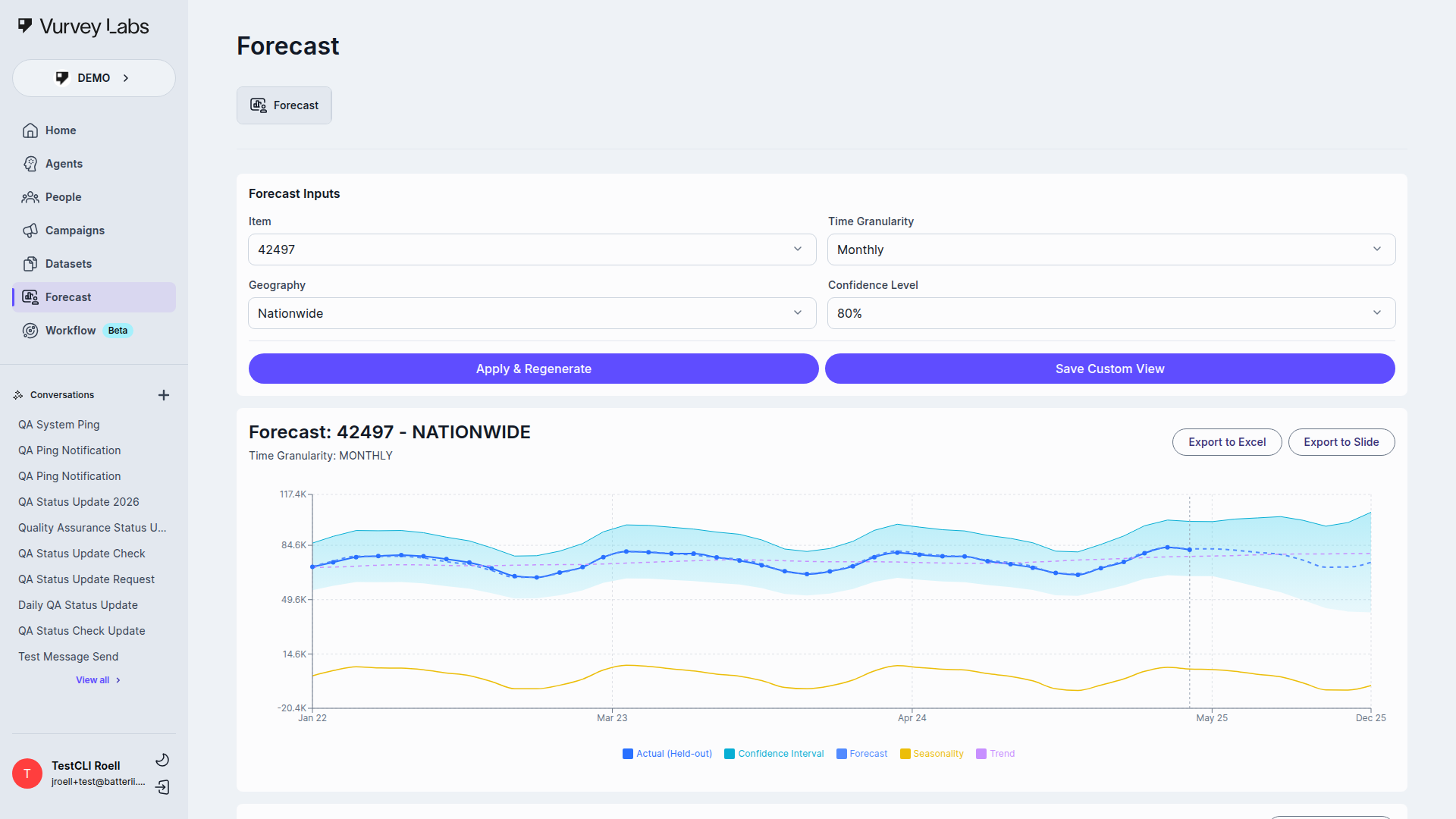
Forecast is a workspace feature for structured forecasting and AI-generated analysis. In current vurvey-web-manager master, the visible Forecast shell exposes a single top-level tab: Forecast.
Availability
Forecast is gated by the workspace field forecastEnabled.
- If Forecast is enabled, the page loads normally
- If Forecast is disabled, the app redirects away from the Forecast section
This is not something users can currently toggle from the visible Settings UI.
Current Visible Experience
The main Forecast screen is built from three stacked sections:
- Forecast Inputs
- Chart
- AI analysis
The visible input controls are:
| Input | Purpose |
|---|---|
| Item | What you want to forecast |
| Time Granularity | The time scale for the forecast |
| Geography | The geography tied to the selected item |
| Confidence Level | The confidence setting used for the analysis |
All four controls are dropdown selectors in the current UI.
After changing values, click Apply & Regenerate to refresh the chart and analysis.
A Save Custom View button also appears next to it. In current master that button is wired to a TODO/no-op handler, so docs should not promise saved-view behavior yet.
The analysis section also includes Start Conversation so you can continue exploring the result in chat.
Hidden or Secondary Routes
The master branch still contains additional Forecast routes such as:
- model validation
- model comparison
- discover
- optimize
Those routes exist in the codebase, but they are not exposed from the current visible Forecast sub-navigation. For end users, the reliable primary entry point is the main Forecast page.
Model Comparison Note
If your workspace links directly into the comparison route, the current code supports comparing up to 7 models at once. Older docs that mention a limit of 5 are outdated.
That comparison flow uses a dedicated Select Models to Compare modal. The current modal includes:
- a live count header such as
3/7 models - Clear All
- Cancel
- Submit
If you try to leave the modal with unsaved model-selection changes, the UI opens a Confirm Exit modal.
Troubleshooting
| Issue | What to check |
|---|---|
| Forecast is missing | Confirm the workspace has Forecast enabled |
| Inputs load but analysis does not | Make sure both Item and Geography are selected |
| Page redirects away | The workspace likely does not have Forecast enabled |