
Rewards
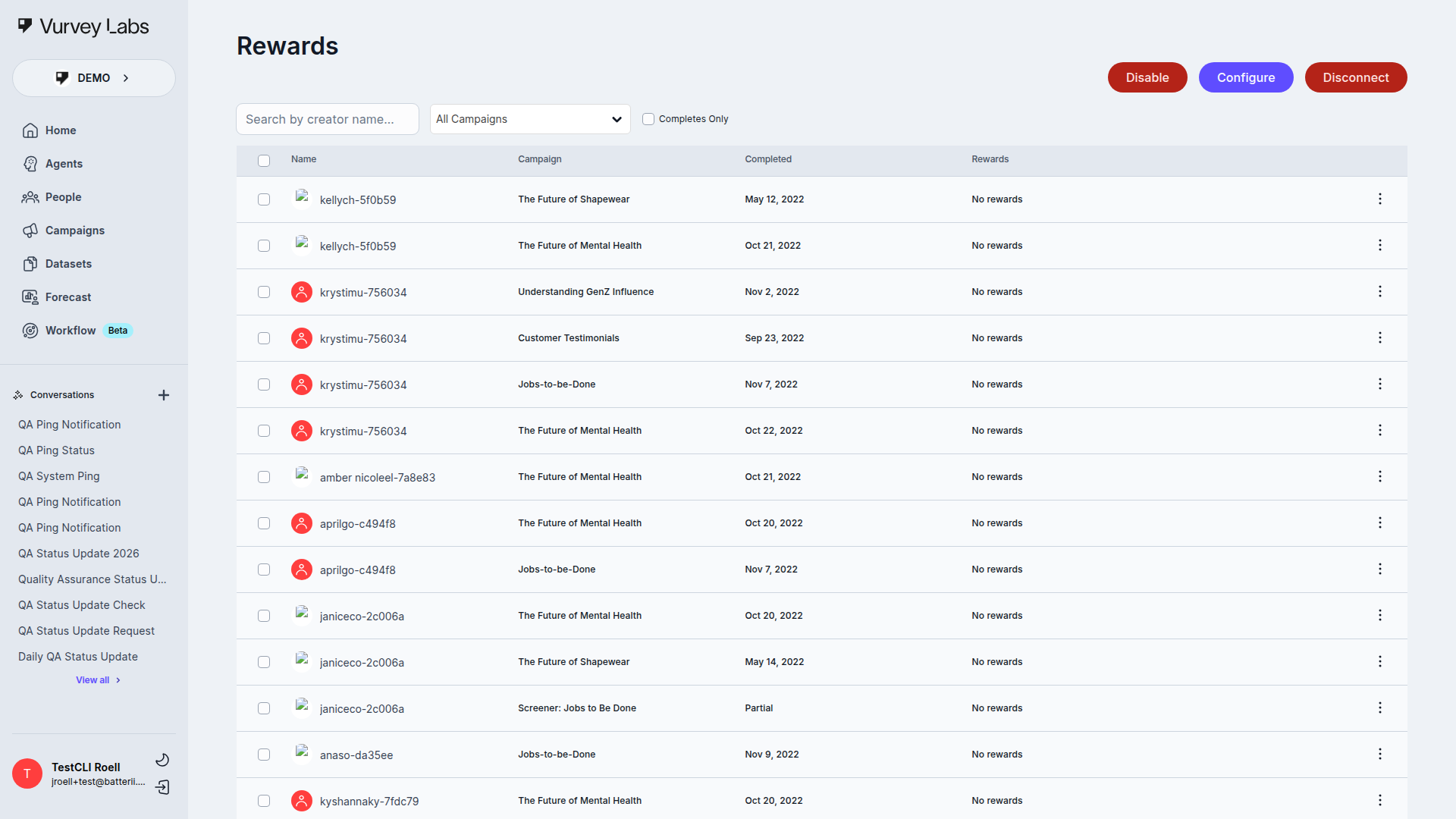
Vurvey's rewards experience lives on the standalone Rewards page. It is centered on Tremendous-backed payouts for campaign responses, with workspace-level configuration handled separately in General Settings when rewards have already been set up.
What the Rewards Page Does
The current page is designed for day-to-day reward operations:
- Search responses by participant name
- Filter by Campaign
- Filter to Completes Only
- Review reward history per response
- Send rewards to one response, a selected set of responses, or a filtered result set
The page-level controls currently include:
- a search box with the prompt Search by creator name...
- a searchable All Campaigns dropdown
- a Completes Only checkbox
- a per-row vertical menu with See Campaign and Send Reward
- a bulk Send Rewards (N) action that only appears after row selection
The main table shows these columns:
| Column | What it shows |
|---|---|
| Name | The respondent |
| Campaign | The campaign tied to the response |
| Completed | Completion timestamp, or Partial |
| Rewards | Existing reward entries and their statuses |
Access and Permissions
The page checks workspace permissions for Tremendous management. If you have a permission containing tremendousSettings, you can:
- Configure Tremendous
- Enable rewards
- Disable rewards
If you do not have that permission, you can still see the page, but setup actions are limited and the UI tells you to contact a workspace owner or admin.
Configuration Flow
Rewards setup is not always visible in General Settings by default. In current vurvey-web-manager master, the Tremendous card in Settings > General settings only renders when the workspace already has reward settings.
If the workspace has no reward configuration yet, the primary setup path is the Rewards page itself:
- Open Rewards
- Click Configure Tremendous
- Complete the Tremendous integration modal. It has:
- step 1 for the API key
- step 2 for the default campaign and funding source
- Next, Finish, and Cancel
- a blocking state when no Tremendous campaign or funding source is available
- Return to the page to enable or manage rewards
Once configuration exists, the page header can show:
- Configure
- Enable
- Disable
Sending Rewards
You can issue rewards in three ways:
- From a single response row using Send Reward
- By selecting multiple responses and using the bulk Send Rewards action
- By using Select all with the current filters applied
The reward flow is Tremendous-specific. The UI supports choosing the amount, currency, and related campaign or funding configuration through the Tremendous reward modal.
The send-reward modal currently includes:
- reward amount
- currency
- the
*Per Creatorindicator - a Choose payment source toggle when campaign/funding options exist
- a Use defaults path when you do not override the payment source
- campaign and funding-source selectors when that toggle is enabled
- a computed Pay total based on the number of selected responses
- Cancel and Pay (...) actions
- a Sending rewards... progress state
- the 2.5% Tremendous fee note
Empty and Disabled States
The page has three important states:
- Not configured: shows an empty rewards state and a Configure Tremendous action for users who can manage settings
- Configured but disabled: shows a help message explaining that rewards are integrated but not enabled
- Configured and enabled: shows the searchable, filterable rewards table
Practical Notes
- Rewards are managed against campaign responses, not as a generic workspace payout ledger
- The page polls funding-source data while open so the state stays current
- Bulk sending respects the current search and campaign filters